
Overview
MondoMenu lets customers browse your menu in their preferred language and view prices in their chosen currency, all within the same venue journey.
This guide covers how to:
- enable languages and currencies
- add translated menu content
- customise customer-facing UI text
- preview the customer experience across online ordering and kiosk
Exchange rates for supported currencies are updated daily to help keep displayed pricing current.
For Groups with multiple venues, see the following article:
https://support.mondoconnex.com/en/support/solutions/articles/51000516710-subgroup-language-currency
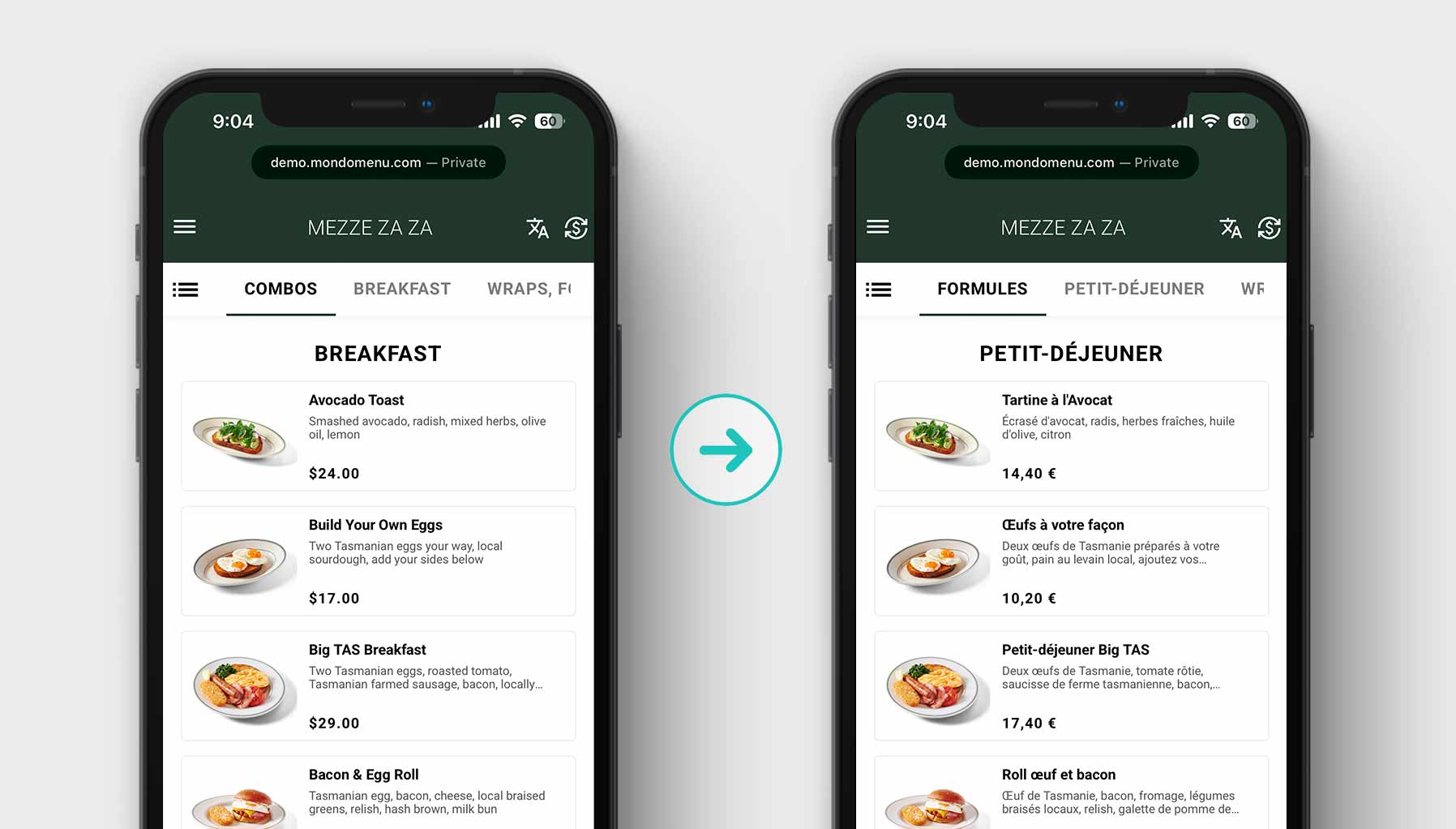
What’s included:
- Up to 8 languages: English, Chinese, Japanese, Korean, Vietnamese, Thai, Spanish, French
- Up to 10 currencies with exchange rates updated daily
- Translated names and descriptions on products, categories, modifiers, combos, recommendations, and sizes
- 197 customisable UI text labels across your Kiosk and Online Ordering screens
Before You Start
- You need Venue Admin or Venue Group Admin access to the Management Portal.
- Changes to language and currency settings take effect immediately for online ordering once saved.
- Translations for individual menu items are optional. If no translation is entered, the item will display in your default language.
- .
Step 1: Open Language & Currency Settings
- Log in to the MondoMenu Management Portal.
- In the left sidebar, select your venue, then go to Venue Settings.
- Click Language & Currency.
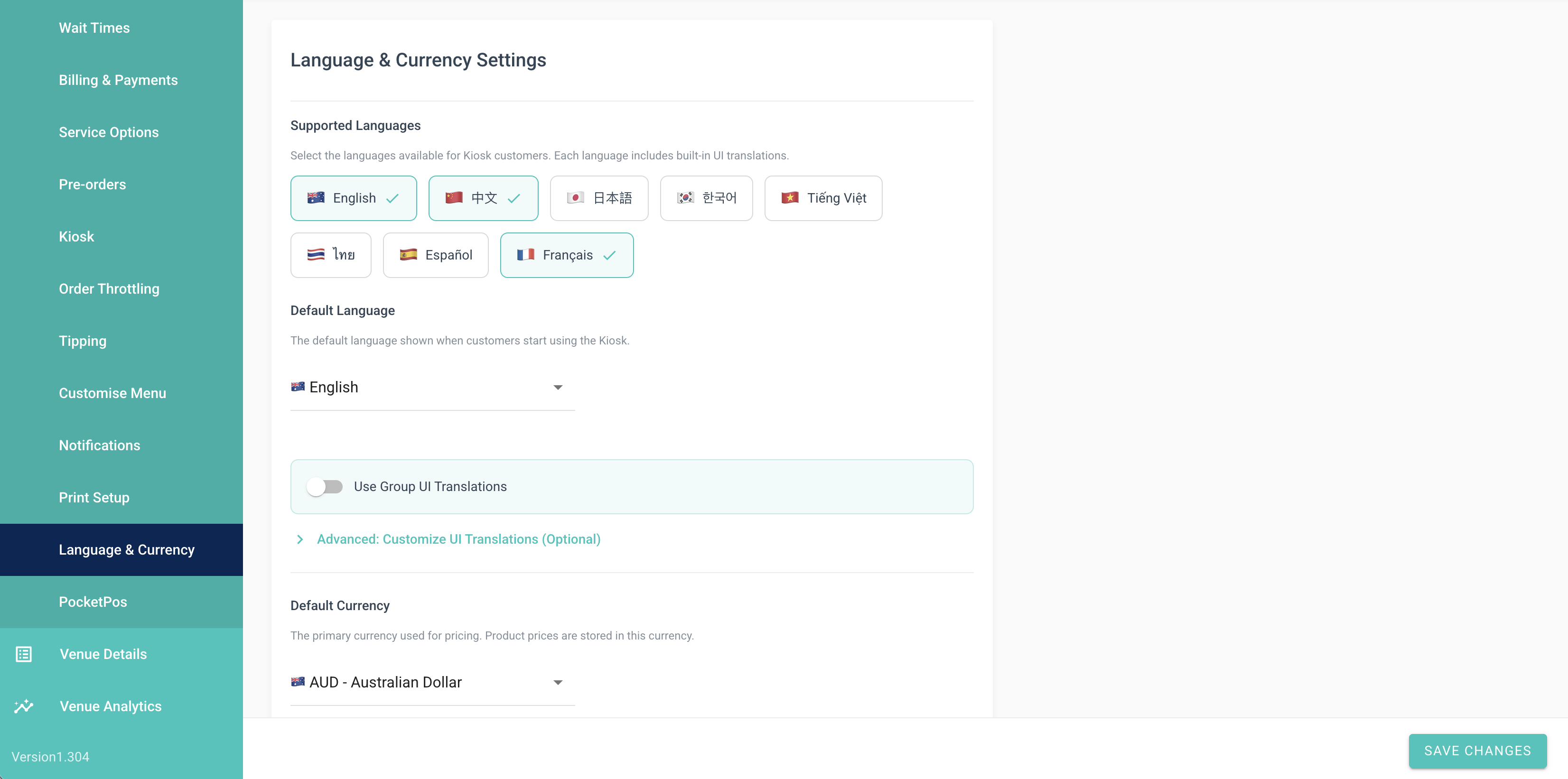
The Language & Currency page has three sections:
- Languages — choose which languages your customers can switch to
- Currencies — choose which currencies are available and set exchange rates
- UI Translations — customise the text labels shown on your ordering screens (advanced)
Step 2: Select Your Supported Languages
In the Languages section, select the languages you want to offer customers.
Available languages:
- English
- Chinese (Simplified)
- Japanese
- Korean
- Vietnamese
- Thai
- Spanish
- French
Tip: You do not need to enable multiple languages to use multi-currency. The two features work independently.
Step 3: Save Your Language Settings
- Scroll to the bottom of the page and click Save.
- A confirmation message will appear when your settings have been saved.
Once saved, the language selector will appear in the header of your online ordering page. Customers can switch languages at any time during their session.
Tip: If you have the AI Auto Translation feature enabled, saving your language settings will also trigger automatic translation of your menu content. See AI translations for details on that feature.
Step 4: Set Up Currencies
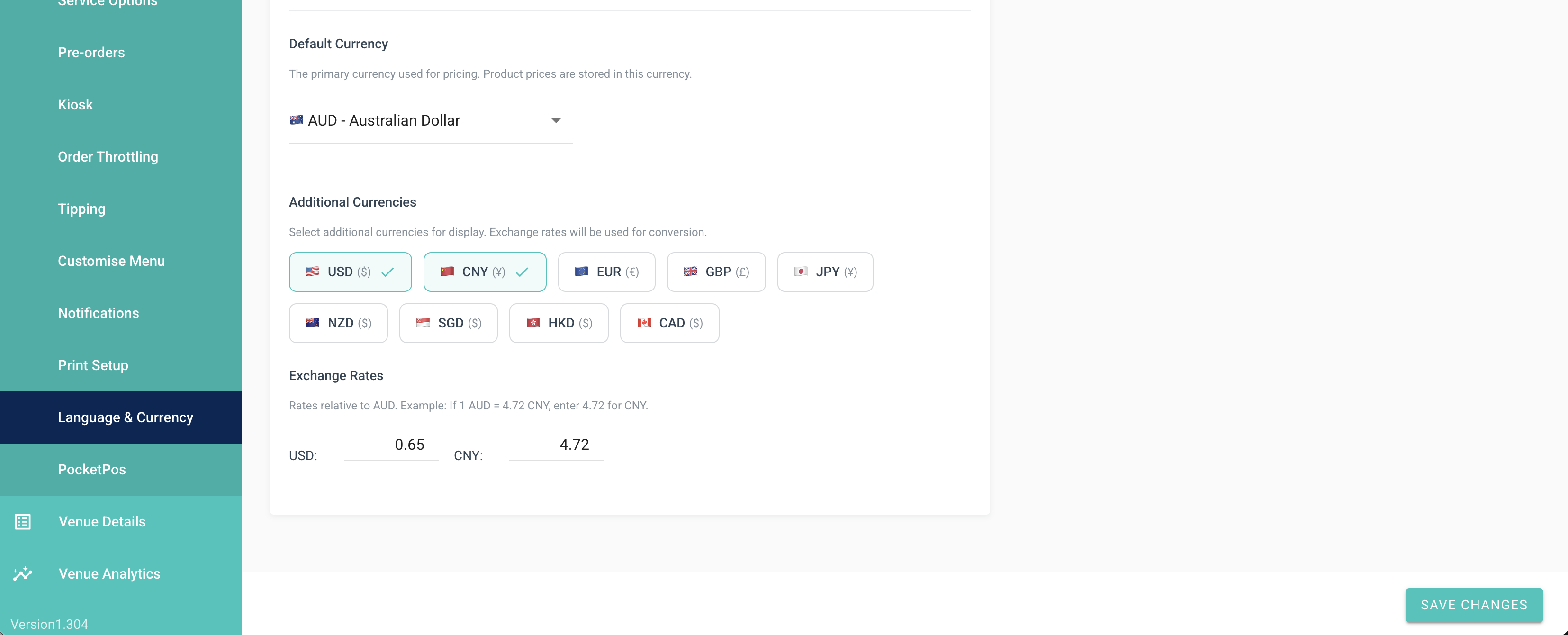
In the Currencies section, select the currencies you want to make available to customers.
When a new currency is selected, the exchange rate is populated automatically and updated daily. You can also override the rate manually if needed, for example to account for a service margin or a preferred internal rate.
Available currencies include:
- AUD
- USD
- EUR
- GBP
- SGD
- HKD
- JPY
- CNY
- TWD
- NZD
Set one as the Default Currency.
Tip: Exchange rates are refreshed daily. If you manually override a rate, review it periodically to ensure it remains appropriate.
Note on EUR: EUR prices use a comma as the decimal separator, for example 12,50 €, and the currency symbol appears after the amount. This formatting is applied automatically whenever EUR is the active currency.
Step 5: Save Your Currency Settings
- Click Save after selecting your currencies and confirming exchange rates.
Currency options will now appear in the ordering page header alongside the language selector
Step 6: Add Translations to Menu Items
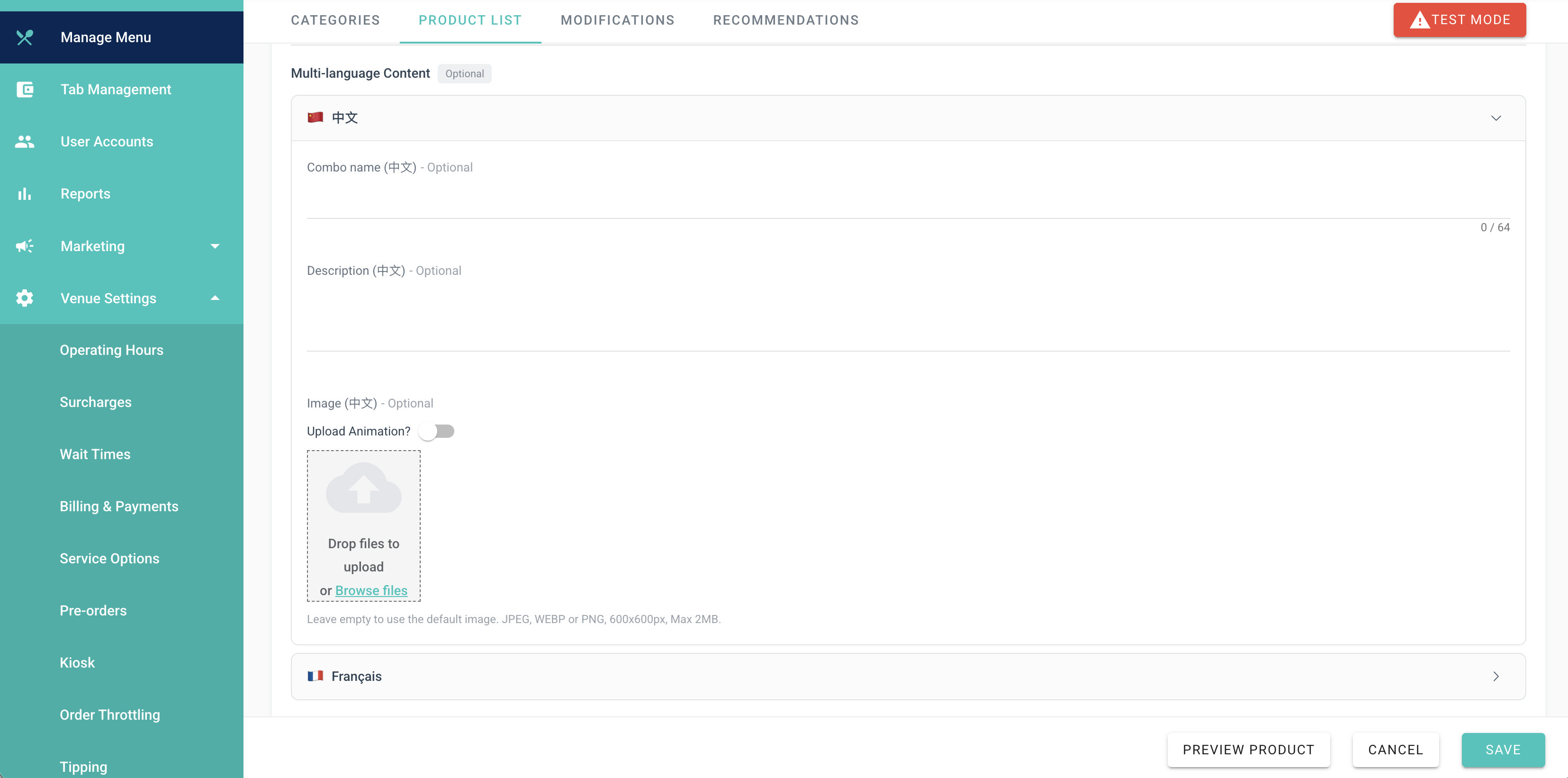
To translate menu items:
- Go to Manage Menu
- Open the relevant product
- Enter translated content in the available language fields
- Save your changes
You can add translations for:
- product names
- descriptions
- other customer-facing text fields where available
Language-specific images
Where a product or menu image contains text, you can upload a different image for each enabled language. This ensures customers see the correct translated version based on their language selection.
If the image does not contain any text, you can leave the additional language image fields blank and the default image will continue to be used.
If a translated field is left blank, the product will display in the default language.
Tip: You don't need to fill in every language for every item. Any untranslated item will automatically display in the default language, regardless of what language the customer has selected.
Step 7: Enter Translations for Categories and Modifiers
Categories:
- Go to Menu > Categories.
- Edit a category.
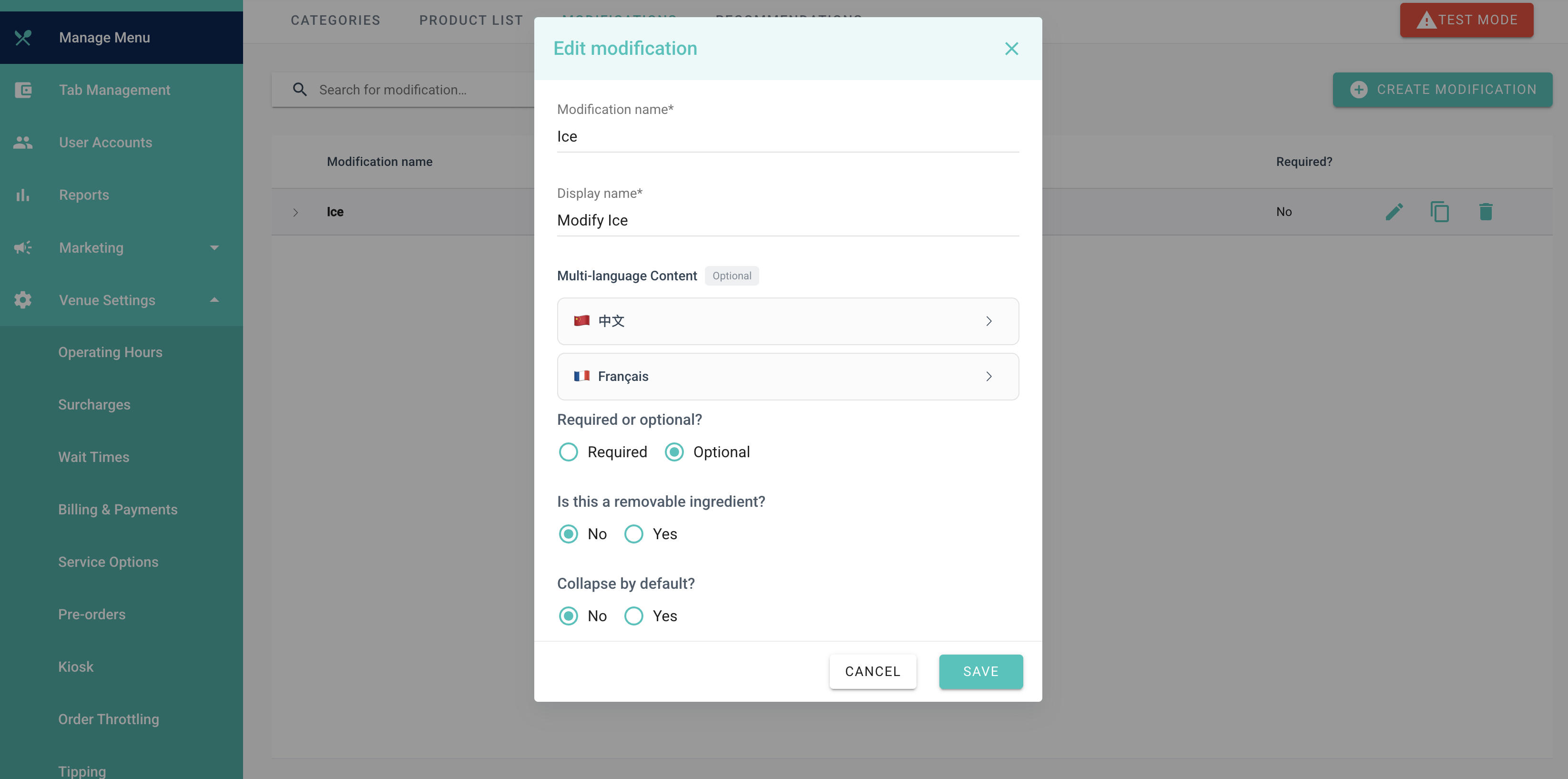
- Click a language tab in the Name field and enter the translated category name.
- Save.
Modifiers:
- Go to Menu > Modifiers.
- Edit a modifier group or individual modifier option.
- Use the language tabs to enter translated names.
- Save.
Tip: If you have many items to translate, consider using the AI Auto Translation feature (Guide 01), which can translate all your content automatically in bulk.
Step 8: Customise UI Text Labels
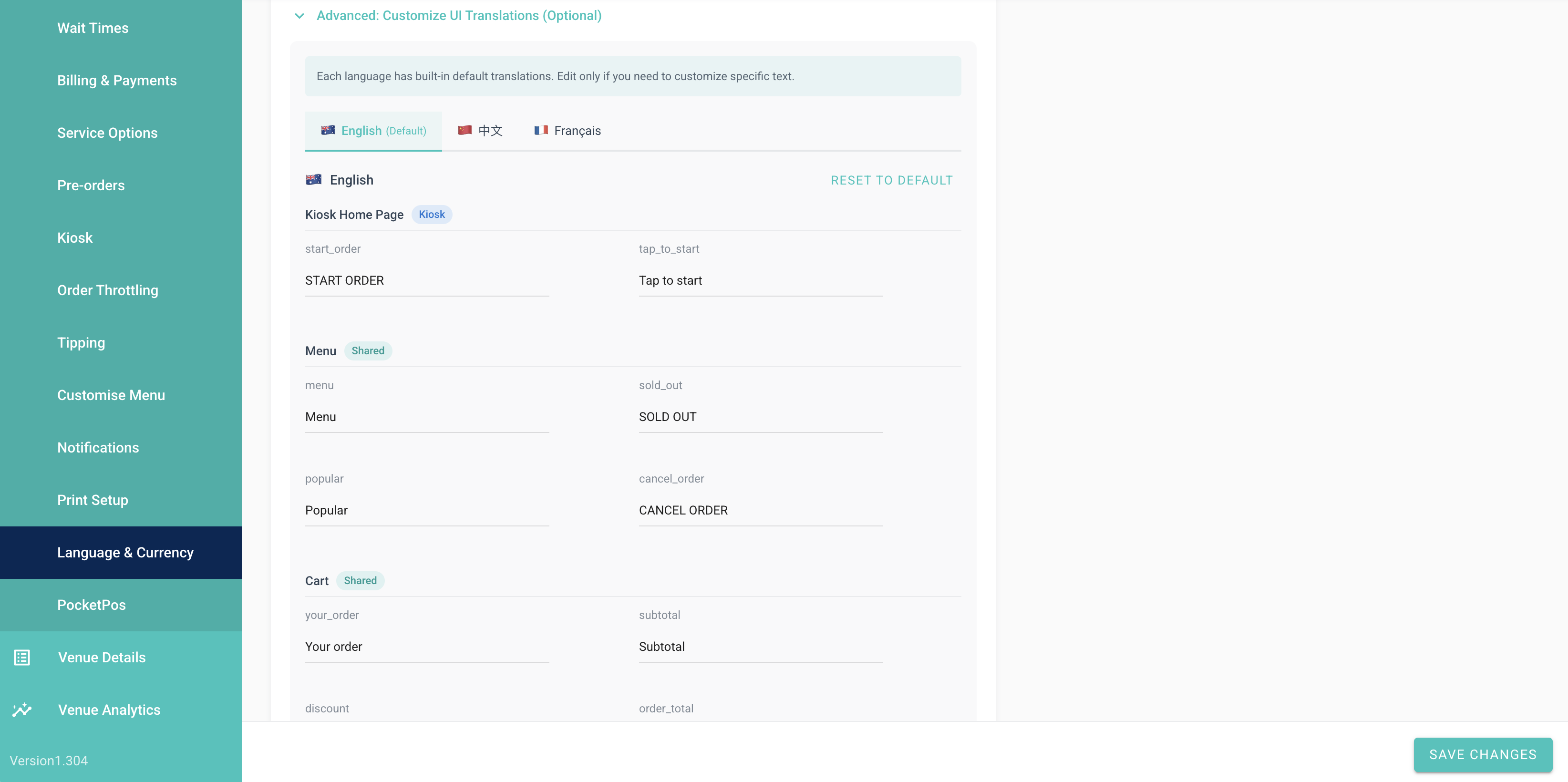
The UI Translations section lets you change the fixed text that appears across your ordering screens — things like button labels, headings, and status messages. There are 197 customisable text keys in total. This section is available to all Venue Admins.
To edit UI text:
- On the Language & Currency page, scroll to the UI Translations section and expand it.
- You will see a tab bar with three tabs:
- Kiosk — text shown on in-venue kiosk screens
- Mobile / Online — text shown on online ordering and mobile ordering pages
- Shared — text used across both platforms
- Click a tab to browse the text keys in that group.
- Each row shows the key name, the default English text, and an input field for your custom version.
- To override a label, type your custom text into the input field for that key. Leave a field blank to keep the default.
- If multiple languages are enabled, a language selector appears so you can enter custom text for each language separately.
- Click Save when finished.
Tip: Most venues won't need to change UI labels. This section is most useful if you want to adapt terminology for your specific region — for example, changing "Add to Cart" to "Add to Order", or translating labels that the AI auto-translation doesn't cover.
Step 9: Preview the Customer Experience (Online Ordering)
After saving your settings, open your online ordering link to see how customers will experience the changes.
- In the Management Portal, go to Venue Settings > Service Options and copy your Online Ordering URL, or open it from the QR code page.
- Open the URL in a browser.
In the header of the ordering page you will see:
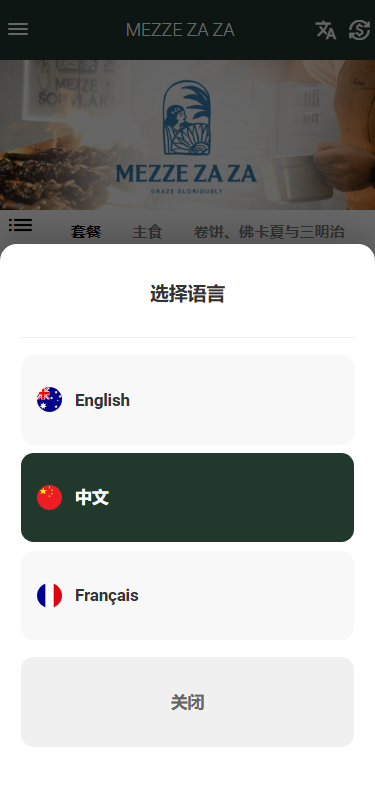
- A language selector (if multiple languages are enabled) — displayed as a flag or language name
- A currency selector (if multiple currencies are enabled) — displayed as the currency code
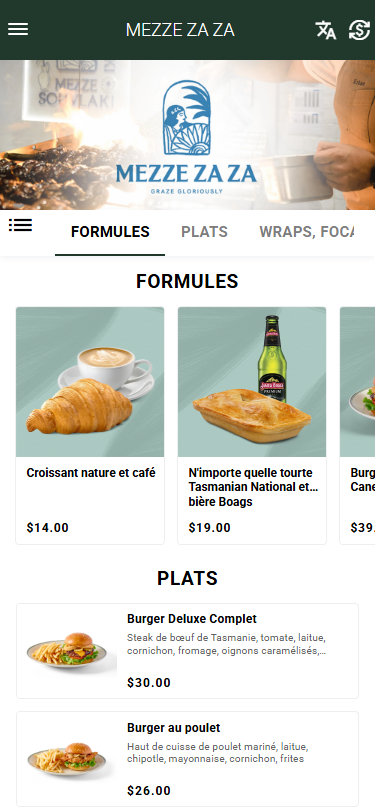
- Click the language selector and switch to a non-default language. Menu item names, descriptions, category names, and modifier options will update to show your translations.
- Click the currency selector. Prices will convert automatically based on the exchange rates you set.
Step 10: Understand Currency Conversion for Customers
When a customer selects a non-default currency, displayed prices are converted using the exchange rates configured in Step 4.
This includes:
- menu item prices
- discounts
- coupons
- combo pricing
Orders are still recorded in your default currency in the Management Portal and reports.
Currency conversion is for customer display and convenience only. Your payment gateway continues to charge in the venue’s default currency.
Because exchange rates are updated daily, displayed foreign currency pricing stays more closely aligned with current rates.
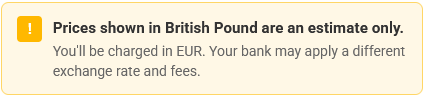
Note: Currency conversion is for display purposes and customer convenience. Your payment gateway charges in your default currency. Customers will receive an alert that explains this to them on the cart page.
eg:
Step 11: Language and Currency on Kiosk
If your venue uses MondoMenu Kiosks:
- The language selector is also available on the kiosk home screen.
- UI text labels customised in Step 8 under the Kiosk tab apply to the kiosk screens.
- Translated product names and descriptions entered in Steps 6 and 7 display on the kiosk when the customer selects a language.
- Currency switching on the kiosk follows the same exchange rates set in Step 4.
Tip: For kiosk venues with a predominantly single-language customer base, you may choose to enable additional languages without making the selector prominent — customers who know to look for it will find it, while others see the default.
Step 12: Keeping Translations Up to Date
When you add or edit menu items after translations are set up, keep the following in mind:
- New products: The translation fields are blank by default. The item will show in the default language for all customers until you add translations.
- Edited products: If you update the English name of a product, the translations for other languages are not automatically updated (unless AI Auto Translation is enabled — see Guide 01). You will need to update each language manually.
- Disabled languages: If you untick a language in settings and save, all stored translations for that language are preserved in the database but will no longer be shown to customers. If you re-enable the language later, the translations will reappear.
Tip: Use the AI Auto Translation feature to keep translations in sync whenever you make menu changes. It detects updated fields and re-translates only what has changed.
Tips & Best Practices
- Start with the languages your customers are most likely to use.
- Use your default language as the master version for all menu content.
- Only customise UI labels if you have a clear operational or regional reason.
- Daily exchange rate updates help keep displayed pricing current, but any manually overridden rates should still be reviewed from time to time.
- Only upload language-specific images where the image itself contains text. Otherwise, the default image can usually be reused across all languages.
- Test the experience on a real device by switching language and currency as a customer would.
Frequently Asked Questions
Q: What happens if I enable a language but don't translate any of my products?
All products will display in your default language regardless of which language the customer selects. The language selector will still appear, but only the UI text labels (buttons, headings) will change language — product names and descriptions will stay in the default language until you add translations.
Q: Can I set different currencies for different products?
No. The currency selector applies to the entire venue. All prices are converted using a single exchange rate per currency pair. Individual products cannot be priced differently per currency.
Q: Why does EUR show prices like "12,50 €" instead of "€12.50"?
This is the standard European formatting convention for Euro. MondoMenu automatically applies comma decimal separators and places the symbol after the amount when EUR is selected. This cannot be changed.
Q: Can customers complete checkout in a non-default currency?
Customers see prices in their selected currency throughout the ordering experience, but the order total submitted to your payment gateway is always in your default currency. The currency display is for customer reference.
Q: What is the difference between UI Translations and product translations?
Product translations cover the content you enter — names, descriptions, modifier options. UI Translations cover the fixed interface text that MondoMenu generates — button labels like "Add to Cart", headings like "Your Order", status messages like "Order Confirmed". Both are needed for a fully translated experience.
Q: I enabled a new language and now my menu looks incomplete in that language. What should I do?
This is expected if you haven't entered translations yet. Use the language tabs on each product to add translated names and descriptions. For bulk translation, enable the AI Auto Translation feature (Guide 01) and use the "Translate All" function.
Q: If I change an exchange rate, does it affect orders that have already been placed?
No. Exchange rates only affect prices displayed to customers at the time they are browsing. Already-placed orders retain the prices that were shown at checkout.
Q: Does language selection affect the kiosk and online ordering at the same time?
Language and currency settings apply to both the kiosk and online ordering for the same venue. However, a customer's individual selection on the kiosk does not carry over to online ordering, and vice versa — each session is independent.
Need Help?
Contact the MondoMenu support team at support@mondomenu.co or speak with your account manager.
For AI-powered bulk translation of your entire menu, see Guide 01: AI Auto Translation Setup & Usage.