

Use AI Translation to roll out and maintain multi-language menus faster.
Prerequisites
Before you begin, make sure you have:
- Venue Admin or Venue Group Admin access to the MondoMenu Management Portal
- At least one menu, product, or category already set up in your venue
- Decided which languages you want to support (up to 8 languages are available)
Step 1: Open Venue Settings
- Log in to the MondoMenu Management Portal.
- In the left sidebar, select your venue name.
- Click Venue Settings.
Step 2: Navigate to Language & Currency
- Inside Venue Settings, find and click the Language & Currency tab.
- This is where you manage language, currency display, and translation settings for your venue.
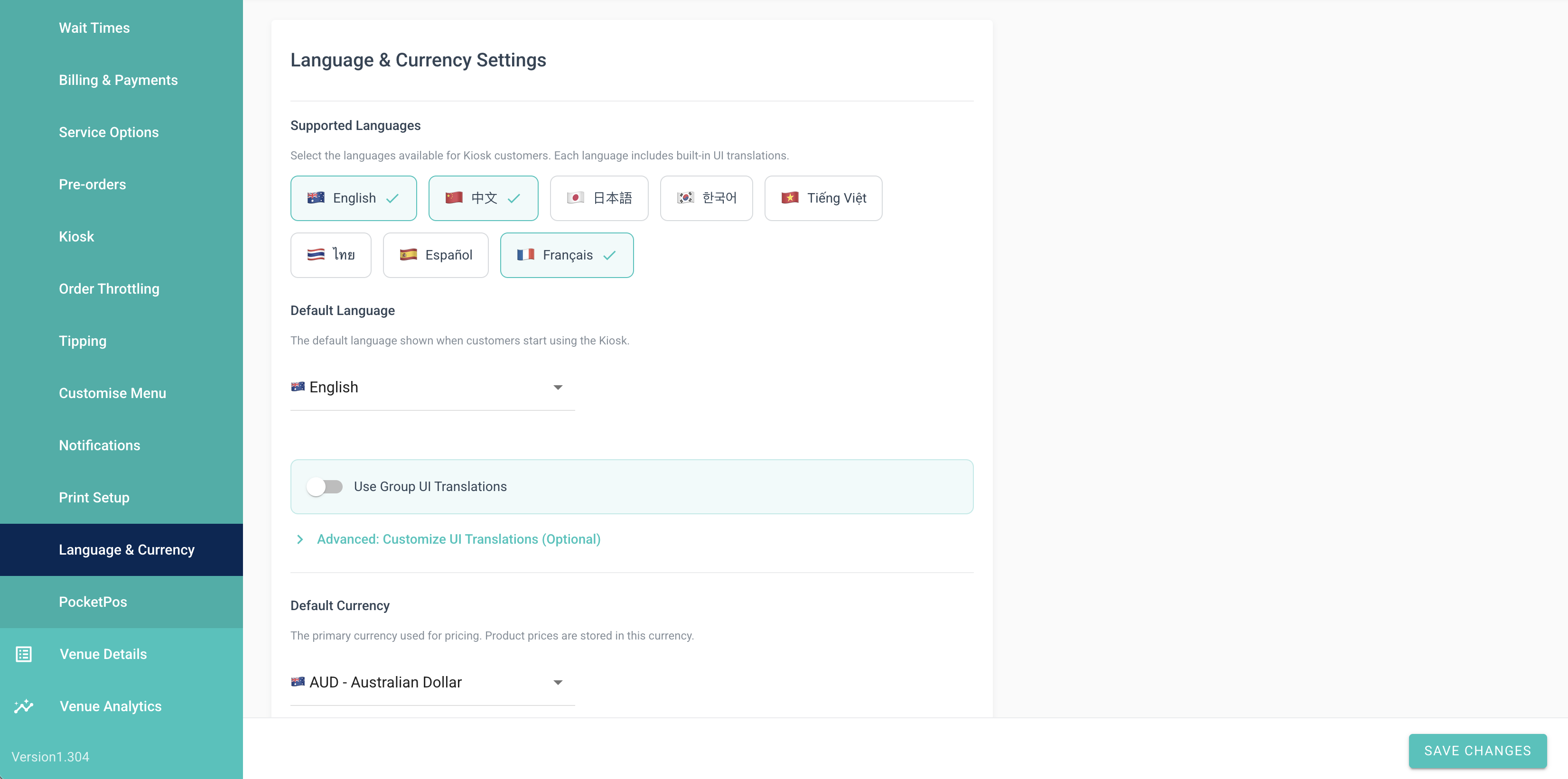
Step 3: Enable AI Auto Translation
- Scroll down to the Translation Settings section.
- Toggle AI Auto Translation to the On position.
- A language selector will appear. Choose the languages you want your menu translated into (up to 8 languages).
- Click Save to apply your settings.
Once enabled, translations run automatically whenever you save a product, category, or customer-facing message.
Tip: Manual translations are always protected and will not be overwritten by AI translation.
Step 4: Translate Individual Products
When you need to add or update a product and want to trigger translation immediately:
- Go to Menu Management and open the product you want to edit.
- Make your changes to the product name, description, modifier names, or combo options.
- Click the Auto Translate button near the top of the product edit page.
- A preview banner will appear showing the translated text before you save.
- Review the translations, then click Save to confirm.
Note: If you have entered a translation manually for any field, that translation will never be overwritten by the AI.
Step 5: Bulk Translate Your Full Menu
To translate all products, categories, and messages at once:
- Go to Menu Management.
- Click the Translate All button at the top of the menu list.
- A progress console will open, showing you a live update as each item is translated.
- Wait for the process to finish. The console will show a completion message when done.
Tip: This is the quickest way to get your full menu translated when setting up for the first time.
Step 6: Choose the Right Translation Mode
The Translate All function supports three modes. You can select the mode before running the bulk translation:
| Mode | What it does |
| Default | Only translates items that have never been translated before. |
| Force | Re-runs AI translation for content that was previously auto-translated, while keeping manual translations intact. |
| Force All | Re-translates everything, including fields with manual translations. Use with care. |
Select the mode that fits your situation, then click Translate All to begin.
Tip: Use Default mode for routine updates. Use Force mode only if you need to refresh translations for edited English content while keeping manual translations intact.
Step 7: Verify Translations on the Customer Menu
After translations are complete, check how your menu looks to customers:
- Open the customer-facing menu link for your venue (available in Venue Settings > General).
- Use the language selector on the menu to switch to each translated language.
- Confirm that product names, descriptions, modifier options, and combo choices all appear correctly.
- If any translation looks wrong, go back to the product in Menu Management, scroll to the translation field for that language, type your correction manually, and save.
Tip: Manual corrections will never be overwritten by AI translations.
Tips
- Start with clear source text. Better original wording usually leads to better translations.
- Use Default mode for routine updates.
- Manually enter important dish names or branded phrasing if you want full control. Manual translations are protected.
- For very large menus, consider running Translate All outside peak service periods.
- Use Force mode when you want to refresh AI-generated translations after changing source content, without affecting manual edits.
FAQ
Q: How many languages can I translate into?
You can translate into up to 8 languages at the same time. Contact your account manager if you need guidance on which languages are available.
Q: Will translating overwrite the descriptions I have already typed in manually?
No. Any translation you have typed manually into a language field is permanently protected. The AI will only fill in fields that have no manual translation.
Q: What gets translated automatically?
Product names, product descriptions, modifier names, combo selection labels, category names, and customer-facing messages (such as order confirmation text) are all included.
Q: Can I turn off auto translation for just one product?
Currently, auto translation applies to all products in the venue when it is enabled. To keep a specific field in its original language, type that original text manually into the translation field — it will then be treated as a manual translation and protected.
Q: Why does the progress console stop partway through a Translate All run?
This can happen if there is a temporary connection issue. Refresh the page and run Translate All again using Default mode — it will skip anything already translated and pick up where it left off.
Q: How long does a full menu translation take?
This depends on the size of your menu and how many languages you have selected. A menu with 50 products translating into 4 languages typically completes within a few minutes. Very large menus may take longer.
System Admin Only
These features are only visible to superAdmin and admin roles. Venue Admins and Venue Group Admins will not see these controls in the portal.
Token Usage Statistics
Platform administrators can view translation token consumption across all venues directly in the Translation Settings panel:
- Go to Venue Settings > Language & Currency > Translation Settings.
- Scroll down to the Token Usage section. A breakdown shows how many tokens each venue has consumed.
Note: This data is visible only to superAdmin and admin roles. Venue Admins do not see this section.
Force Re-Translate All
- The FORCE RE-TRANSLATE ALL button is available exclusively to superAdmin users.
- It bypasses all translation mode logic and forces a complete re-translation of every field across the entire venue, including fields that contain manual translations.
Warning: This will overwrite manual translations. Use only when a full reset is required.
Translate All Content (Admin) Card
- SuperAdmin users see a dedicated Translate All Content (Admin) card in the admin dashboard.
- This card provides elevated bulk translation controls that are separate from the standard venue-level Translate All button available to Venue Admins.
Translation Model Configuration
- The AI translation model used by the platform (e.g. geminiModel setting) is configurable by system administrators only.
- Venue Admins cannot change or view this setting.
- To update the model configuration, access the platform-level system settings in the admin panel and locate the AI Translation configuration section.