
Tailored Ordering Flows let you run a separate ordering experience alongside your regular menu. This is ideal when you want different products, messaging, QR codes, or fulfilment logic for a specific guest journey.
Common use cases include:
- Delivery to Gate in airports
- Poolside ordering in hotels
- VIP or premium guest areas
- Event or function menus
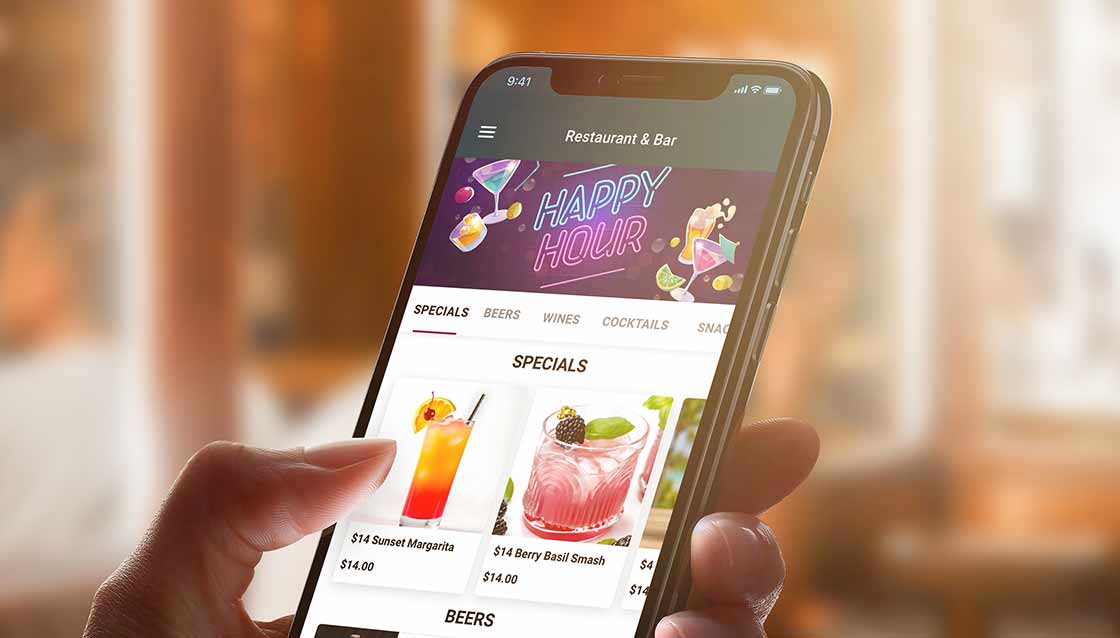
- Happy hour or time-based menu variations
Each flow can have its own QR codes, custom messaging, SMS notifications, and selected menu items, giving you more control over how the experience is presented to customers.
Within MondoMenu, this feature is managed through Custom Flows.
Steps
Step 1 — Open Service Options
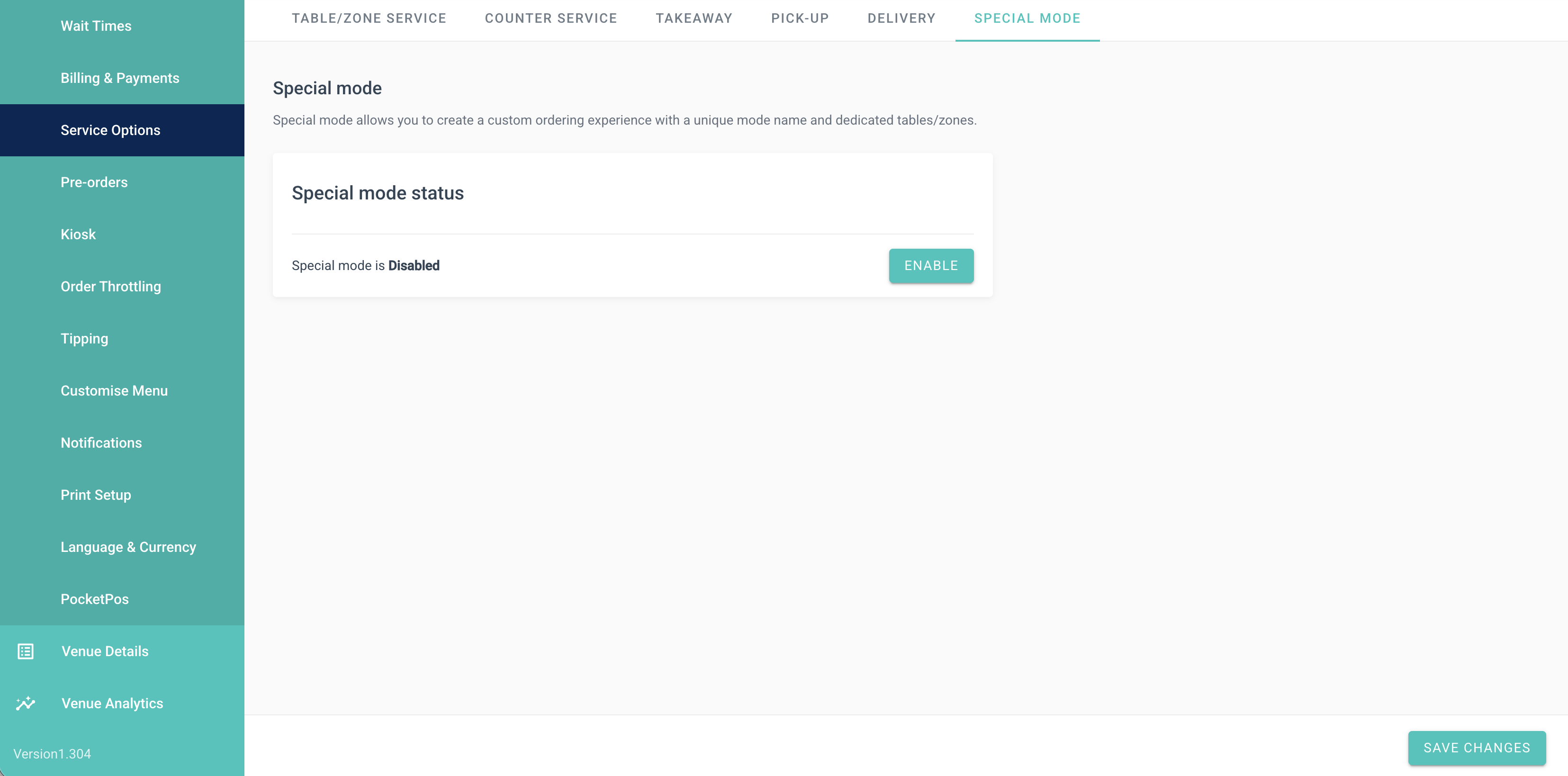
At the top of the page, enable the feature to start configuring your Custom Flow.
Once enabled, you can create a separate ordering journey with its own settings and customer experience.
If Custom Flows are later disabled, customers scanning those QR codes will be returned to the regular menu experience.
Step 2 — Create a New Custom Flow
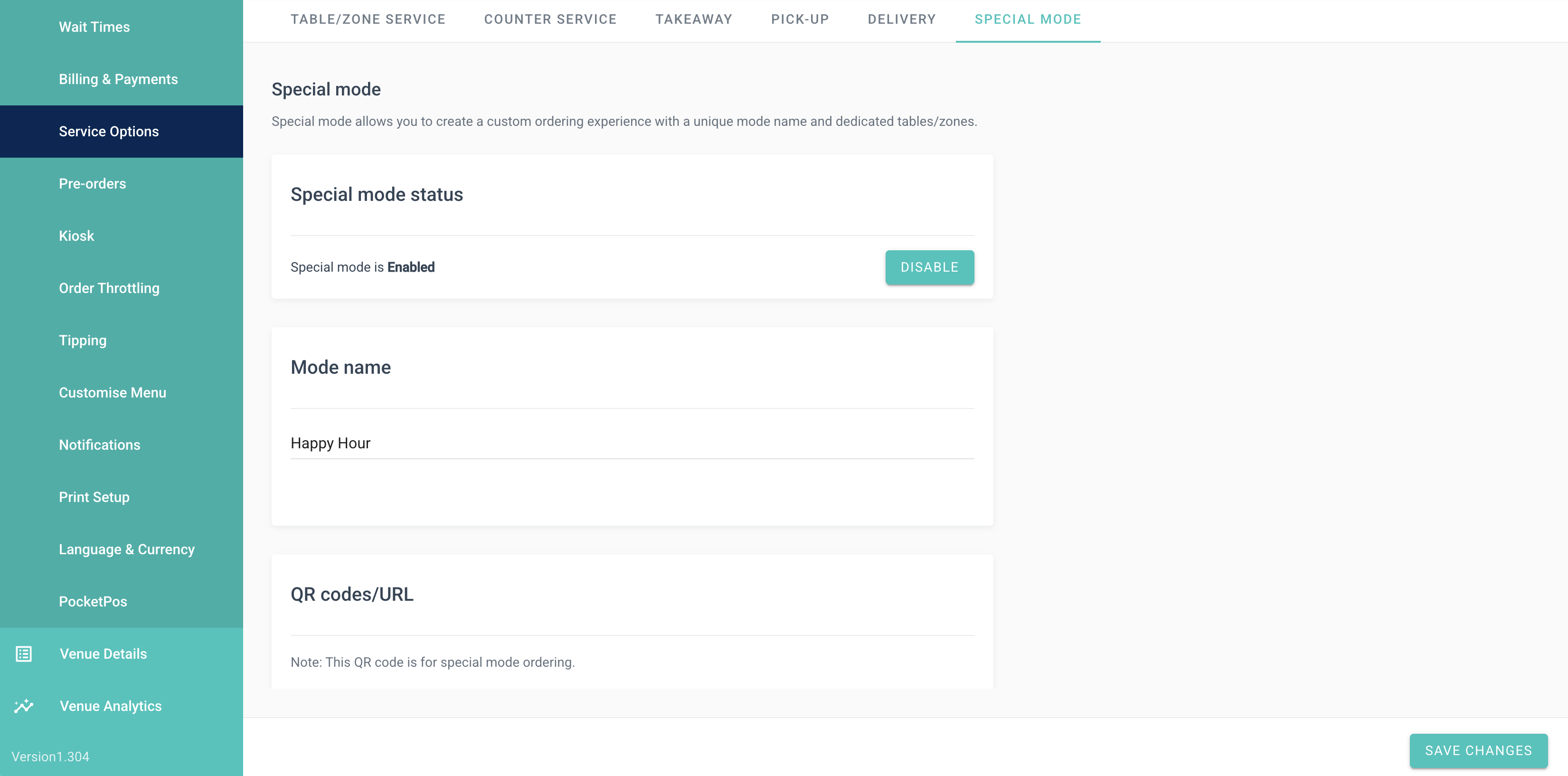
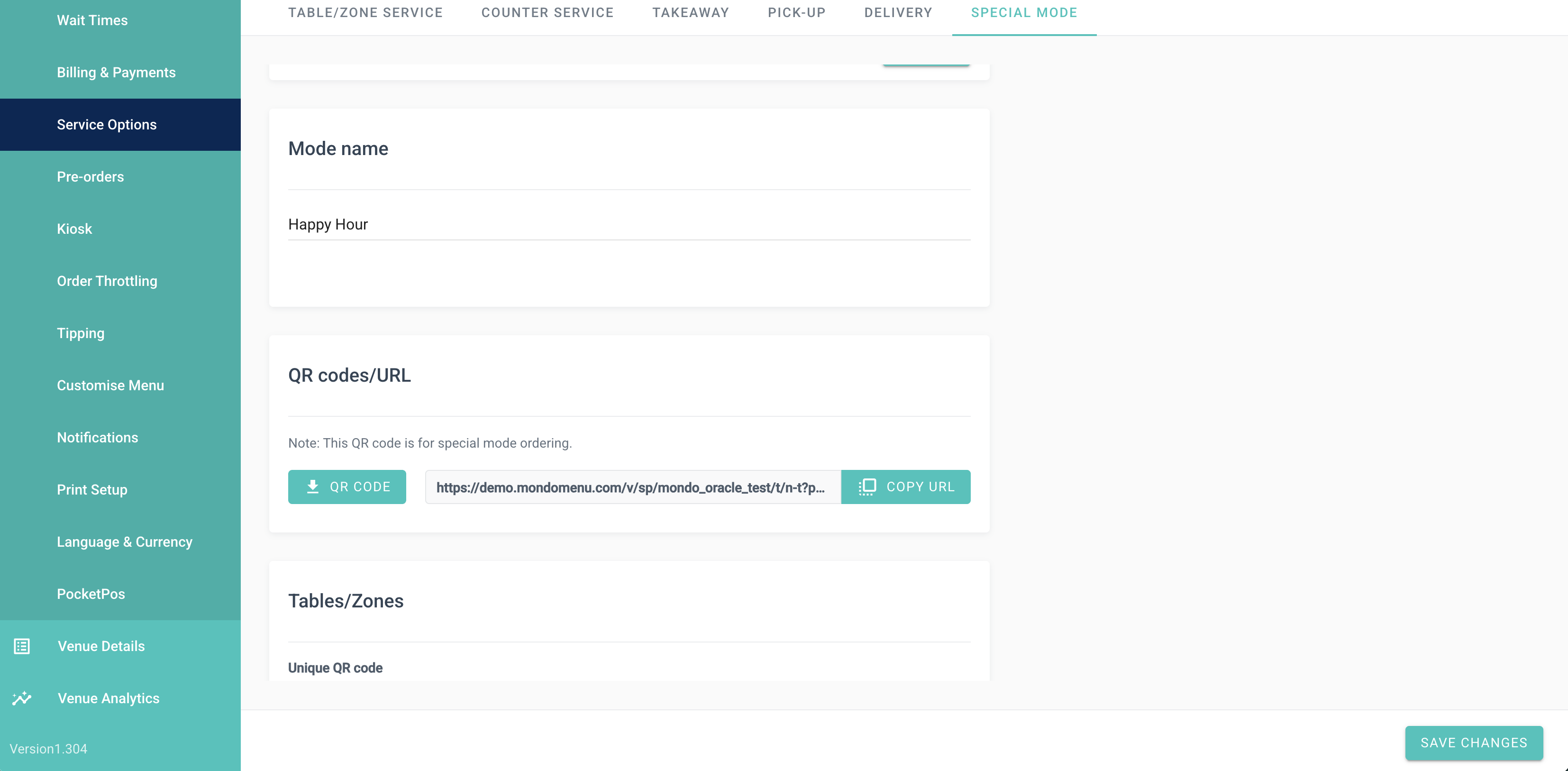
Add a clear name for the Custom Flow.
This should reflect the purpose of the experience, for example:
- Delivery to Gate
- Poolside
- VIP Lounge
- Event Menu
- Happy Hour
Choose a name that will be easy for your team to recognise and manage.
Step 3 — Assign Tables and Zones
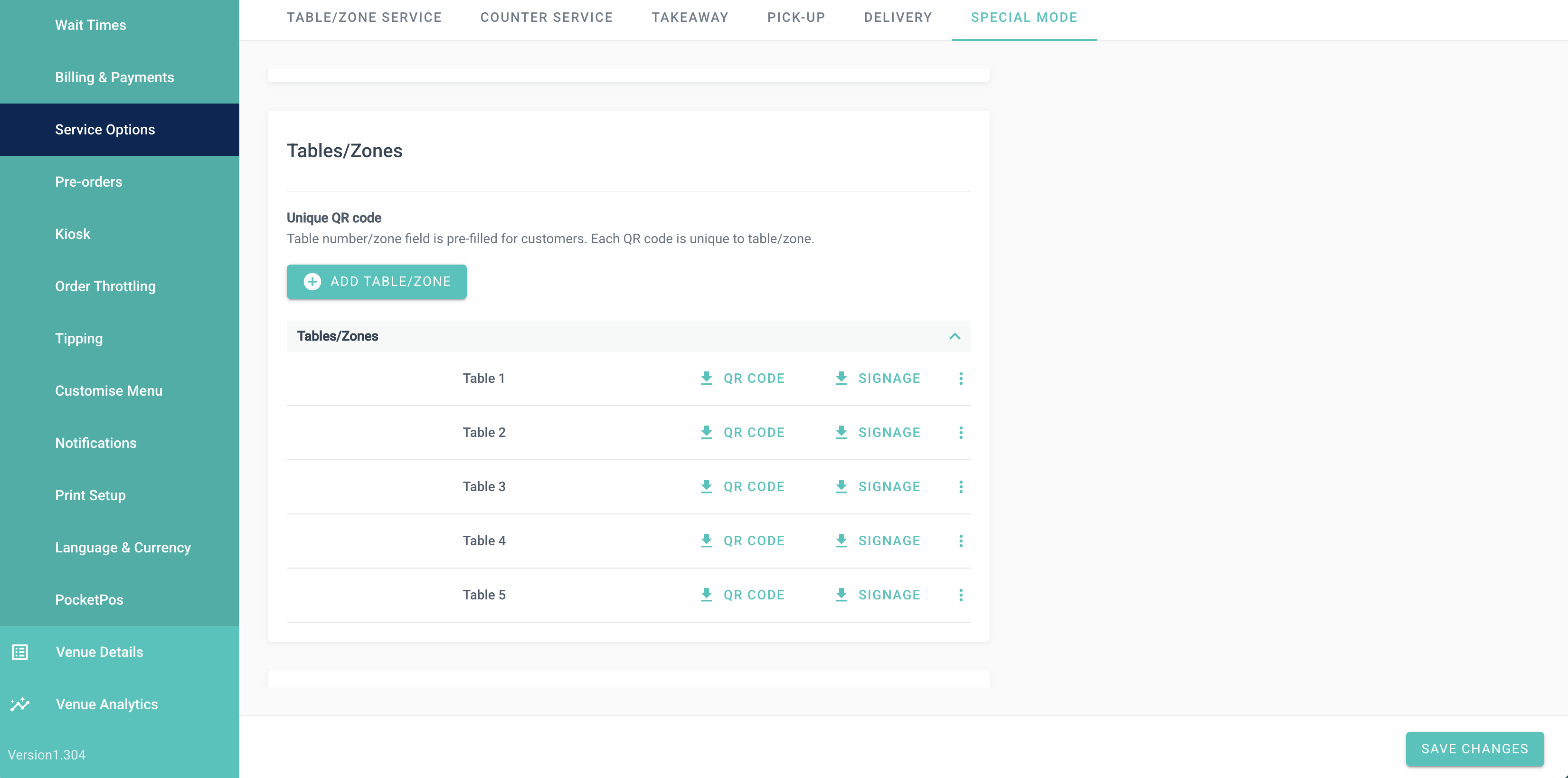
Use the Tables/Zones section to assign the tables or areas that should be linked to this Custom Flow.
This is useful when the experience should only apply to a specific location or service area, such as:
- gate seating areas in airports
- poolside tables or cabanas in hotels
- VIP zones or lounges
- event-only tables or function areas
Each Custom Flow can be tied to the tables or zones relevant to that guest journey.
Step 4 — Generate QR Codes or Use the Custom URL
Each Custom Flow has its own dedicated QR code and URL.
This allows customers to enter that specific ordering journey directly, without affecting your regular menu flow.
For example, you might create:
- a dedicated QR code for gate delivery in an airport lounge or seating area
- a separate QR code for poolside ordering in a hotel
- an event-specific QR code for a private function or premium space
Step 5 — Add Custom Messages
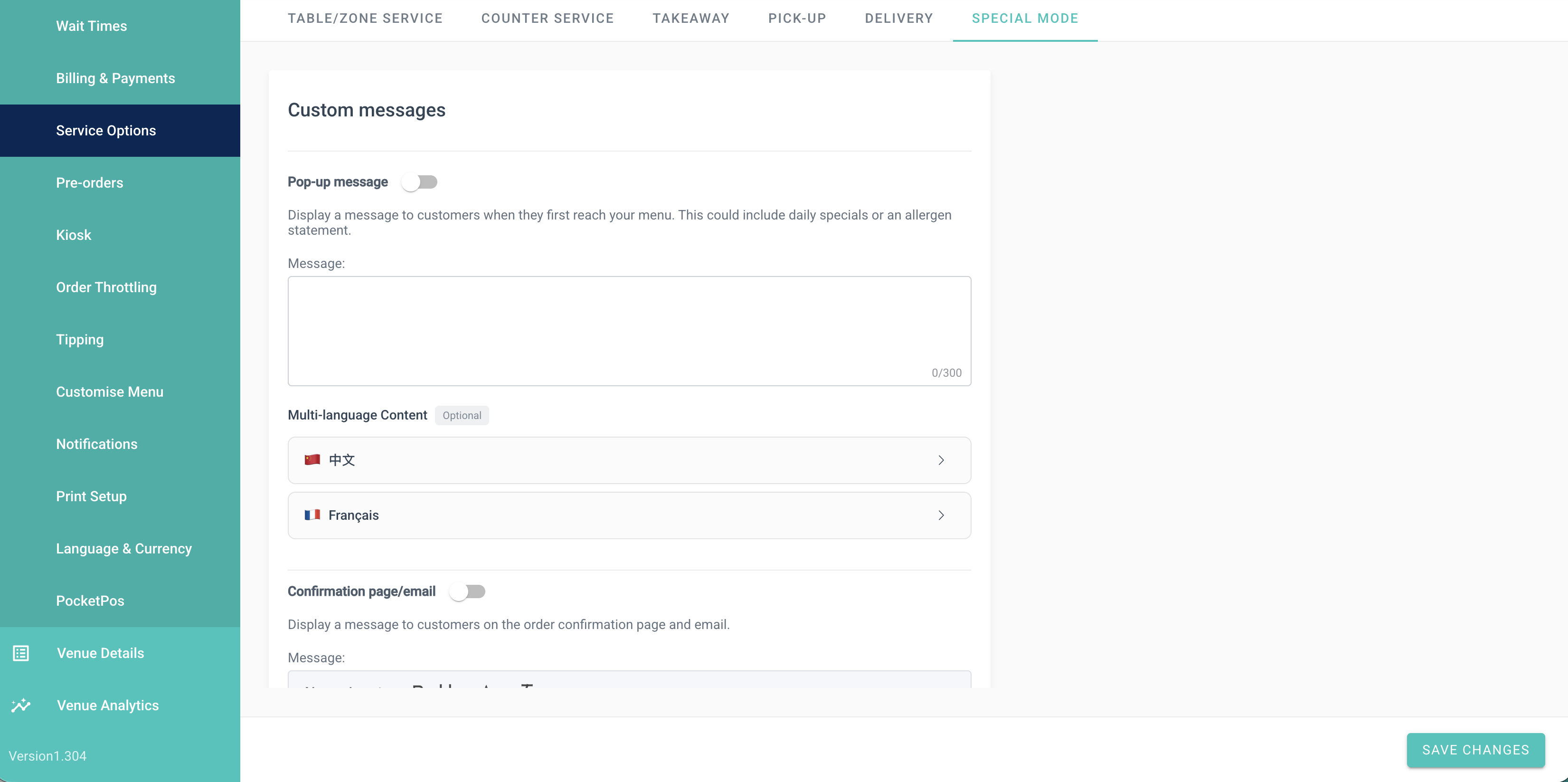
Use the Custom messages section to tailor the customer-facing experience.
You can configure:
- a pop-up message shown when the customer first opens the menu
- a confirmation page or email message shown after ordering
This can be used for things like:
- pickup or handoff instructions
- guest-specific service messaging
- venue or event notices
- ordering guidance for a particular location
Examples:
- “Your order will be delivered to your gate area. Please keep an eye on the display board for updates.”
- “Poolside service is available between 11am and 5pm.”
- “Orders from this menu are available for guests in the VIP lounge only.”
If multi-language content is enabled, custom messages can also be tailored by language.
Step 6 — Configure SMS Notifications
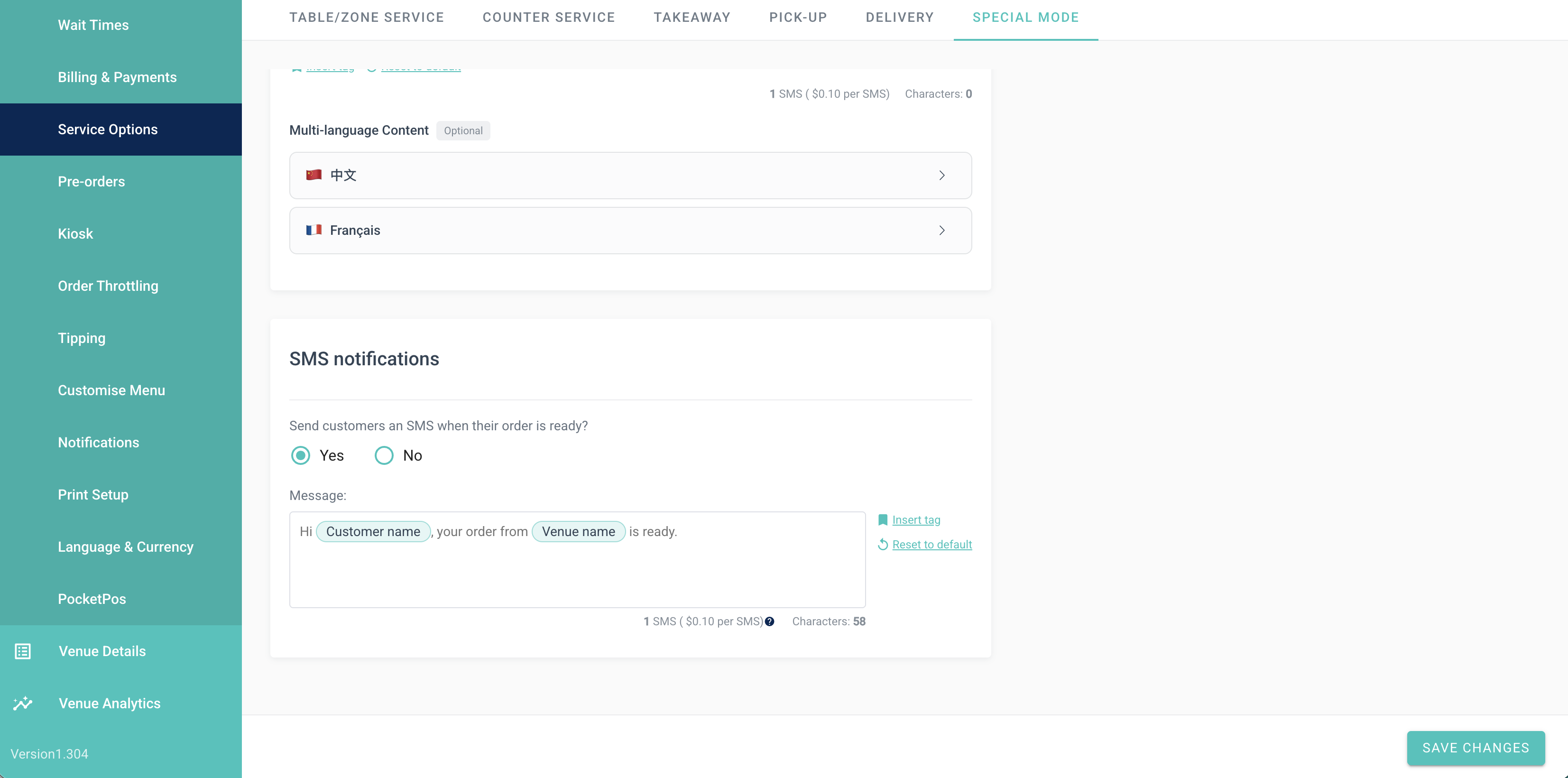
If required, you can enable SMS notifications for the Custom Flow.
This is useful when customers need an additional update during the ordering journey, such as when an order is ready or when a service-specific instruction needs to be communicated.
You can customise the SMS content to suit the use case.
For example:
- notifying a customer that their airport order is ready for collection
- confirming that a poolside order is on the way
- sending a service-specific update for a premium or event area
Step 7 — Opt Products In or Out
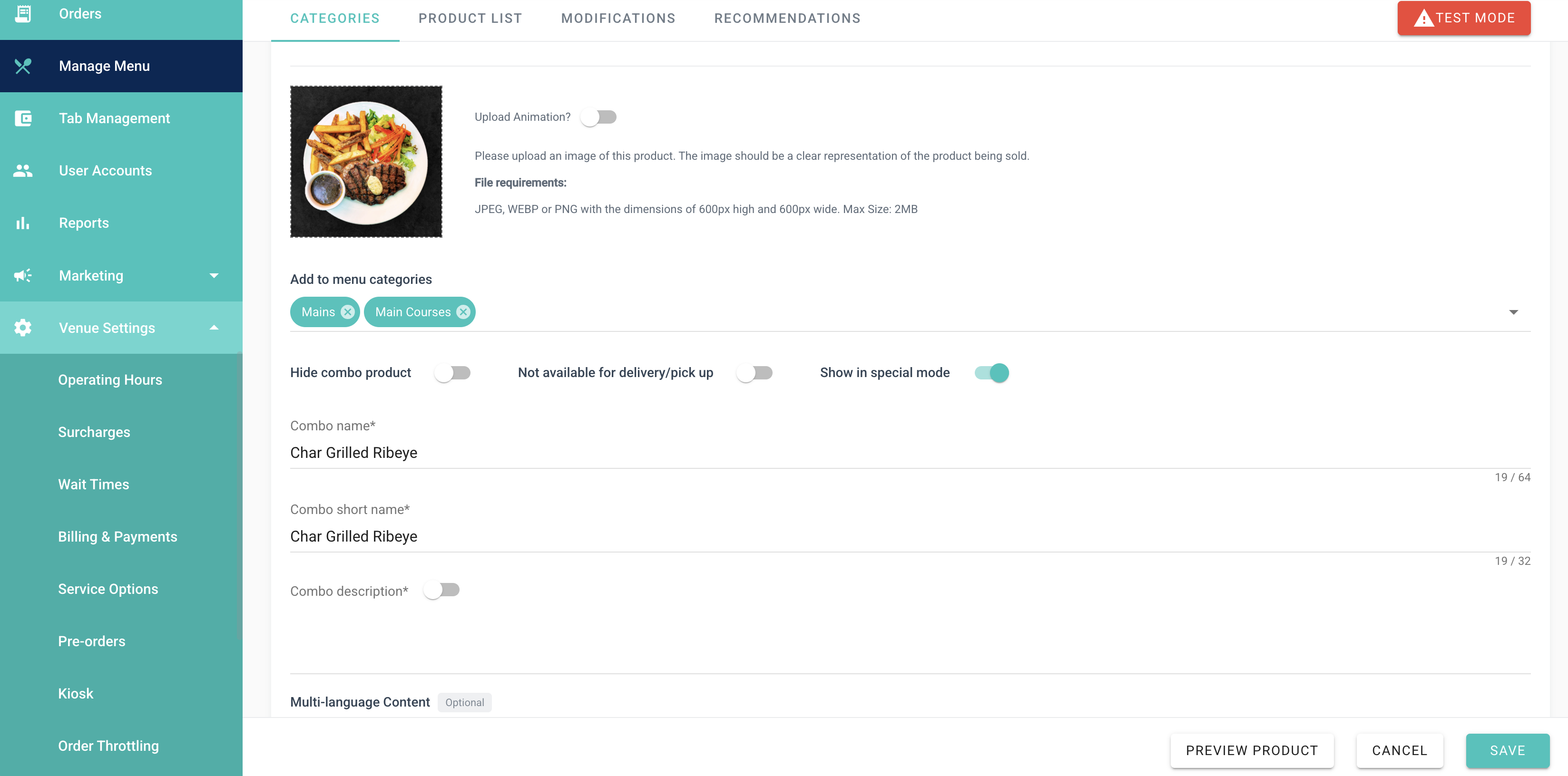
You can control which products appear in the Custom Flow from Manage Menu.
At product level, enable the relevant option so the item is available within that Custom Flow.
This allows you to create a tailored menu for the experience without changing your main menu.
For example, you may want to:
- offer only fast, portable items for Delivery to Gate
- show a reduced drinks and snacks menu for poolside ordering
- limit a VIP flow to premium products only
- create a simplified menu for happy hour or event service
This makes it easy to tailor the available menu to suit the operational flow and customer context.
Tips
- Plan ahead: Set up the Custom Flow in advance and leave the enable toggle off until you are ready to use it. When the event, service window, or use case starts, simply turn it on.
- Turn it on and off as needed: A Custom Flow can be enabled when required and disabled when it is no longer needed, making it easy to manage changing service scenarios.
- Reuse configurations: Once saved, a Custom Flow configuration remains available for future use. This is ideal for recurring setups such as Happy Hour, poolside service, or regular event menus.
- Test before going live: Scan the QR code before launch to confirm the correct products, messages, and routing are showing.
Example Use Cases
Delivery to Gate
Create a dedicated airport ordering journey with its own QR code, messaging, and selected menu items. This can be used for travellers ordering from a gate area, with instructions tailored to collection or delivery.
Poolside Ordering
Create a separate flow for poolside or cabana service with its own QR code and curated menu. This can help simplify the guest experience and support a different service model from the main venue.
VIP or Premium Guest Areas
Use a Custom Flow to offer a distinct ordering experience for premium spaces, lounges, or members-only areas, including tailored messaging and selected products.
Event or Function Menus
Set up a dedicated menu and ordering experience for a private event, conference, or function area without affecting your standard menu setup.
Happy Hour or Time-Based Offers
Create a Custom Flow for a promotional menu with specific items, messages, or service conditions for a defined time period.
FAQ
What is a Custom Flow?
A Custom Flow is a separate ordering experience that sits alongside your regular menu. It can have its own name, QR code, messaging, SMS notifications, assigned tables or zones, and selected products.
Can I use Custom Flows for different venue types?
Yes. Custom Flows can be used across different environments including airports, hotels, premium guest areas, event spaces, and promotional service scenarios.
Do I need to change my main menu to use a Custom Flow?
No. Custom Flows let you tailor the experience for a specific use case without changing the core setup of your regular menu.
Can I choose which products appear?
Yes. Product availability can be controlled so only selected items appear in the Custom Flow.
What happens if I disable Custom Flows?
If the feature is disabled, customers scanning those QR codes will be taken back to the regular menu experience.
Can I customise the customer messaging?
Yes. You can tailor both the initial customer message and the confirmation messaging to suit the use case.
Can I send SMS notifications?
Yes, where enabled. SMS messaging can be used for service-specific updates such as order readiness or fulfilment instructions.