
Feature Overview
Your confirmation messages and collection instructions can now be formatted just like a document — use bold, underline, font size controls, and colour to make key information stand out. You can also insert dynamic tags that automatically fill in details like the customer's name, order number, and table when the message is sent. An SMS character counter helps you stay within message limits without surprises.
Steps
Step 1 — Open Confirmation Messages
From your venue dashboard, go to Service Options and select the Messages tab. You will see your existing confirmation message and collection instructions displayed in the new rich text editor.
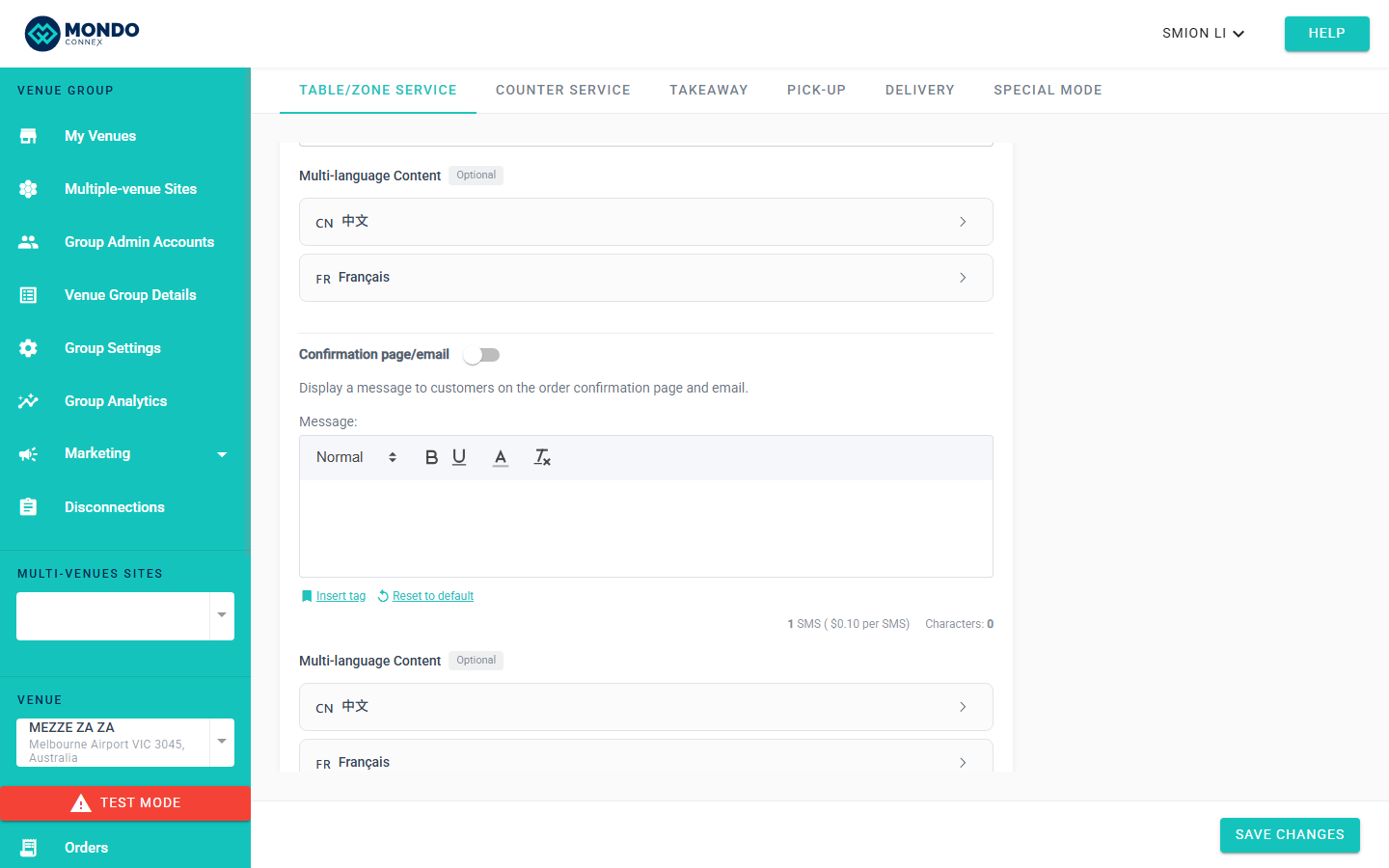
Step 2 — Format Your Text
Select any text in the editor and use the toolbar to apply formatting:
- Bold (
B) — highlight important instructions or warnings - Underline (
U) — draw attention to links or key phrases - Font size — use larger text for headings, smaller for fine print
- Text colour — match your brand colours or use red for urgent notices
Step 3 — Insert Dynamic Tags
Click the Insert Tag button (or type
{ in the editor) to open the tag picker. Select a tag to insert it at the cursor position. Available tags include:
Step 4 — Check the SMS Character Count
Below the editor, the SMS Counter shows the current character count and the number of SMS messages that will be used to deliver it. Standard SMS allows 160 characters per message; longer messages are split and count as multiple messages.
Keep your message under 160 characters to use a single SMS. If you use special characters or emoji, the per-message limit drops to 70 characters.
Step 5 — Preview and Save
Click Preview to see how the message will appear to a customer, with all dynamic tags replaced by sample values. When you are satisfied, click Save Changes. The updated message takes effect immediately for all new orders.
Step 6 — Update Collection Instructions
Repeat the same steps for the Collection Instructions field — this is the message shown to customers when their order is ready. Bold the collection point name or use colour to make the pickup location easy to spot.
Tips
- Keep it short for SMS: Formatting tags like bold and underline are stripped from SMS messages, so the character count reflects plain text only. Long formatted messages look great in-app but can cost extra SMS credits.
- Backward compatible: Any plain text messages you saved before this update still work and display correctly. You do not need to rewrite existing messages unless you want to add formatting.
- Use {VenueName} for multi-venue groups: If you manage more than one venue, using the
{VenueName}tag ensures customers always know which location's message they are reading.
- Test with a real order: After saving, place a test order to confirm the message renders as expected on the customer's device.
FAQ
Q: Will my old plain text messages be deleted or overwritten?
No. All existing messages are preserved exactly as they were. They will continue to display as plain text unless you open them in the editor and apply new formatting.
Q: Can I use different formatting for in-app messages versus SMS messages?
There is currently one message field for each message type. Formatting like bold and colour is shown in-app but stripped when delivered via SMS — only the plain text content is sent. Write your message so that it reads clearly both with and without formatting.
Q: What happens if a dynamic tag has no value for a particular order?
If the information is not available (for example, the customer did not provide an email address), the tag is replaced with a blank space. It is good practice to write messages so that they still make sense if a tag is empty.
Q: Is there a limit on how many dynamic tags I can use in one message?
No hard limit. However, remember that each tag adds characters to the SMS count once it is resolved into real data. A message with many tags may end up using two or more SMS credits per send.