
Overview
The Kiosk Live Preview lets you see exactly what your kiosk home screen will look like — with your real logo, logo text, slideshow, and language settings — without saving any changes. Up to four side-by-side panels, each independently set to a different source.
Role Differences
All three roles see the same preview UI.
Prerequisites
Button appears only when both are true:
- Slideshow mode is enabled
- At least one kiosk device is registered
Step-by-Step Instructions
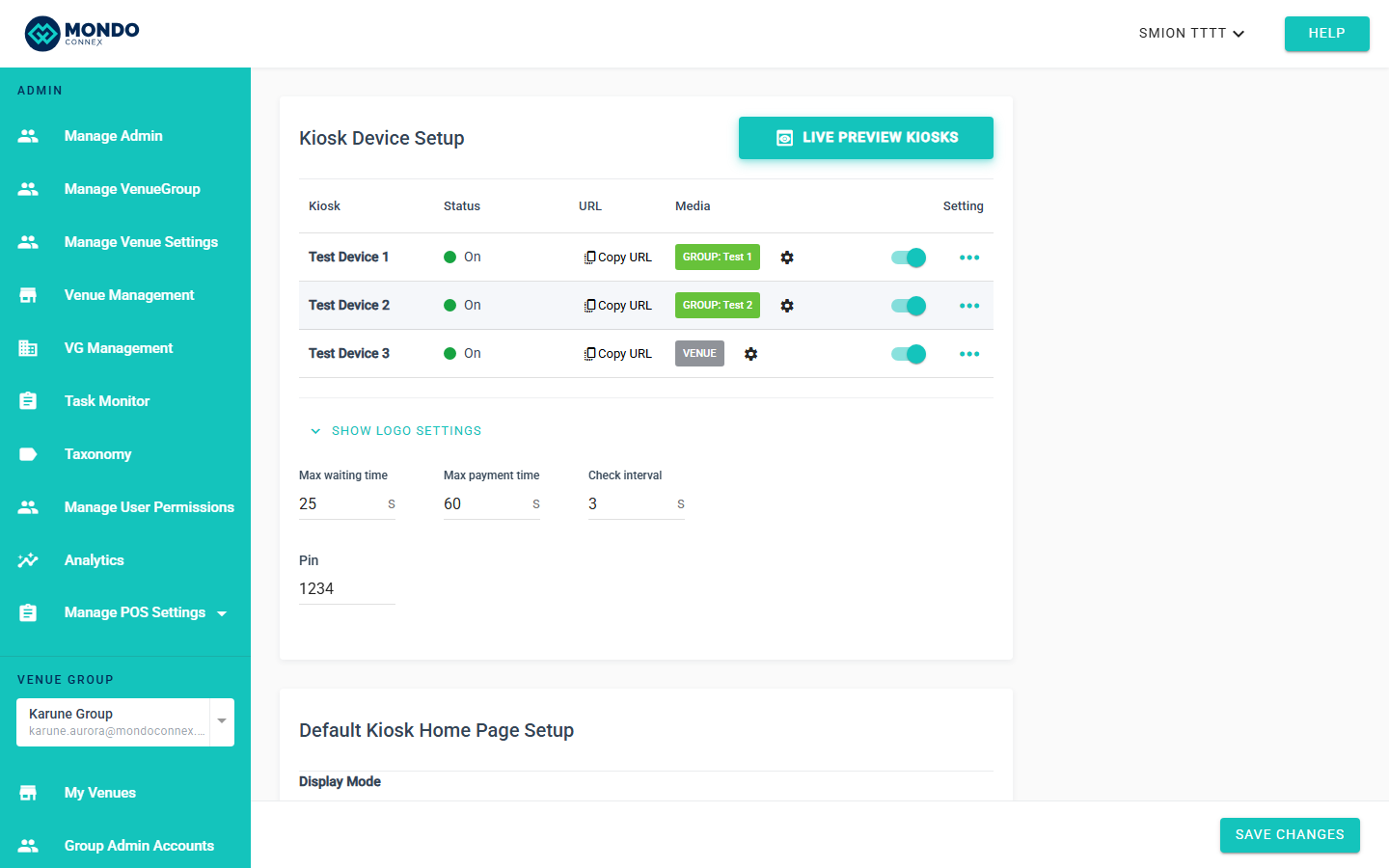
Step 1 — Locate the Live Preview button
Top-right of the Kiosk Device Setup card header (pill-shaped).
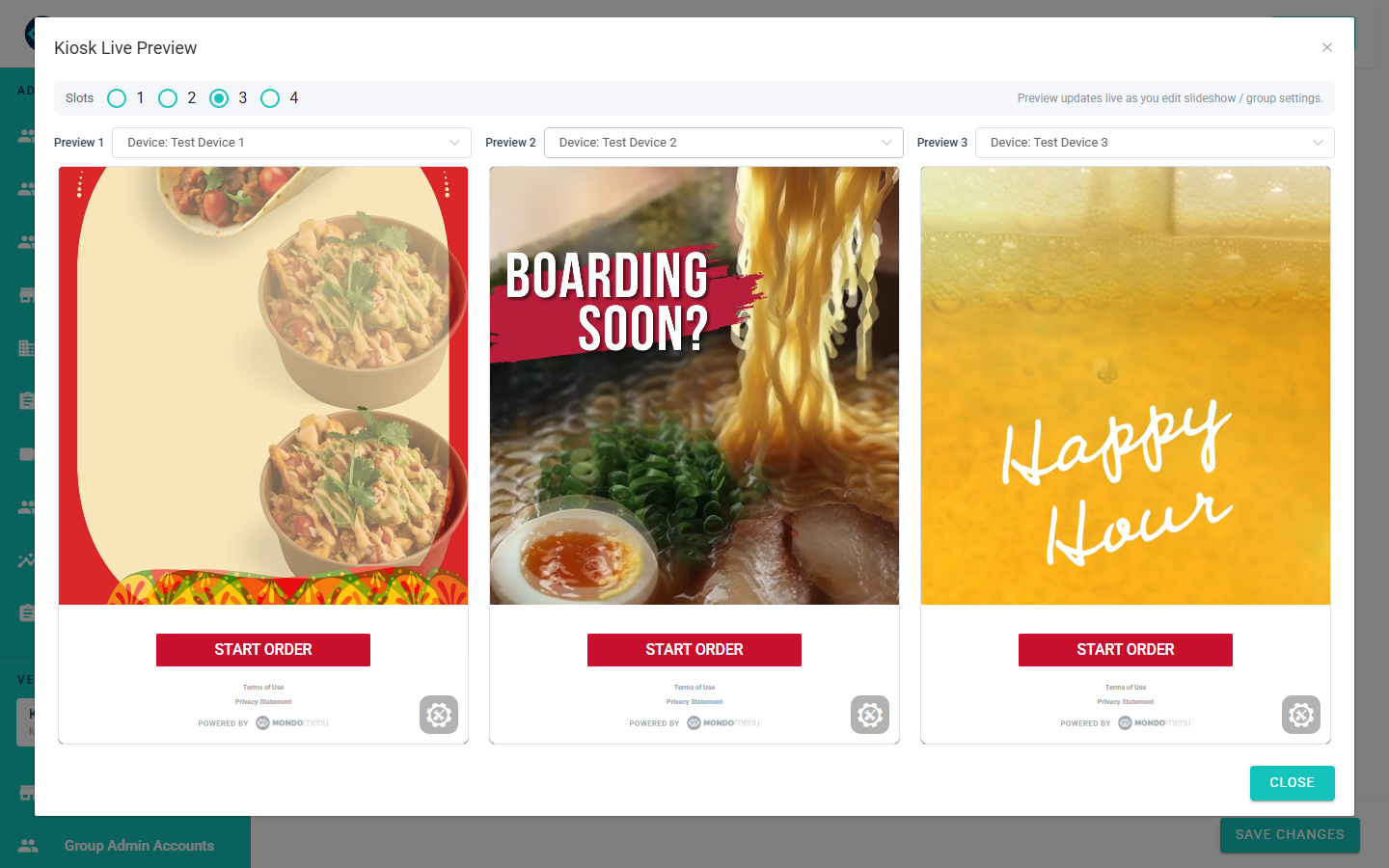
Step 2 — Open the preview dialog
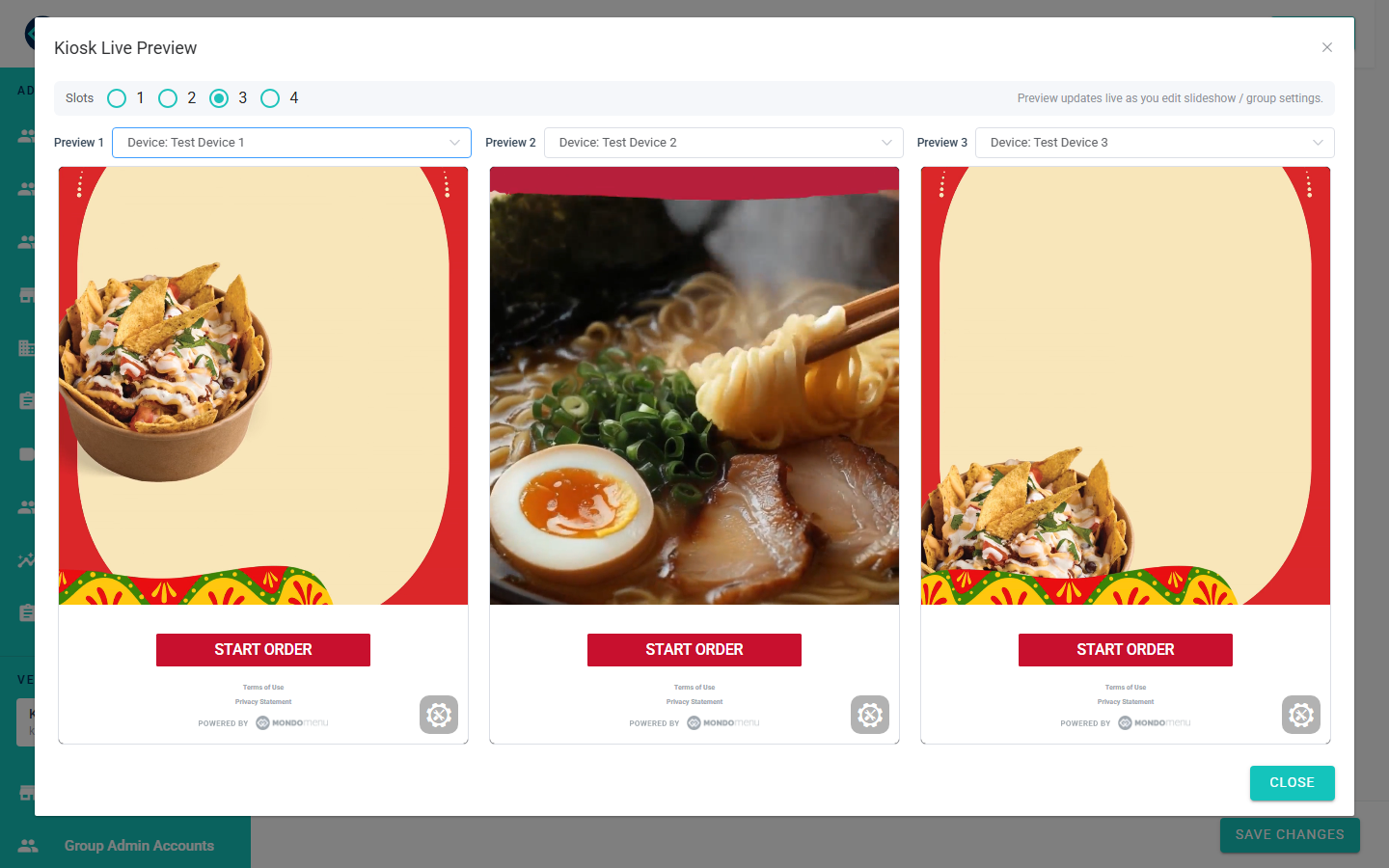
Full-screen dialog (92% viewport height). Up to 4 panels, one per registered device. Each renders the complete kiosk home at 1080 × 1520 portrait aspect.
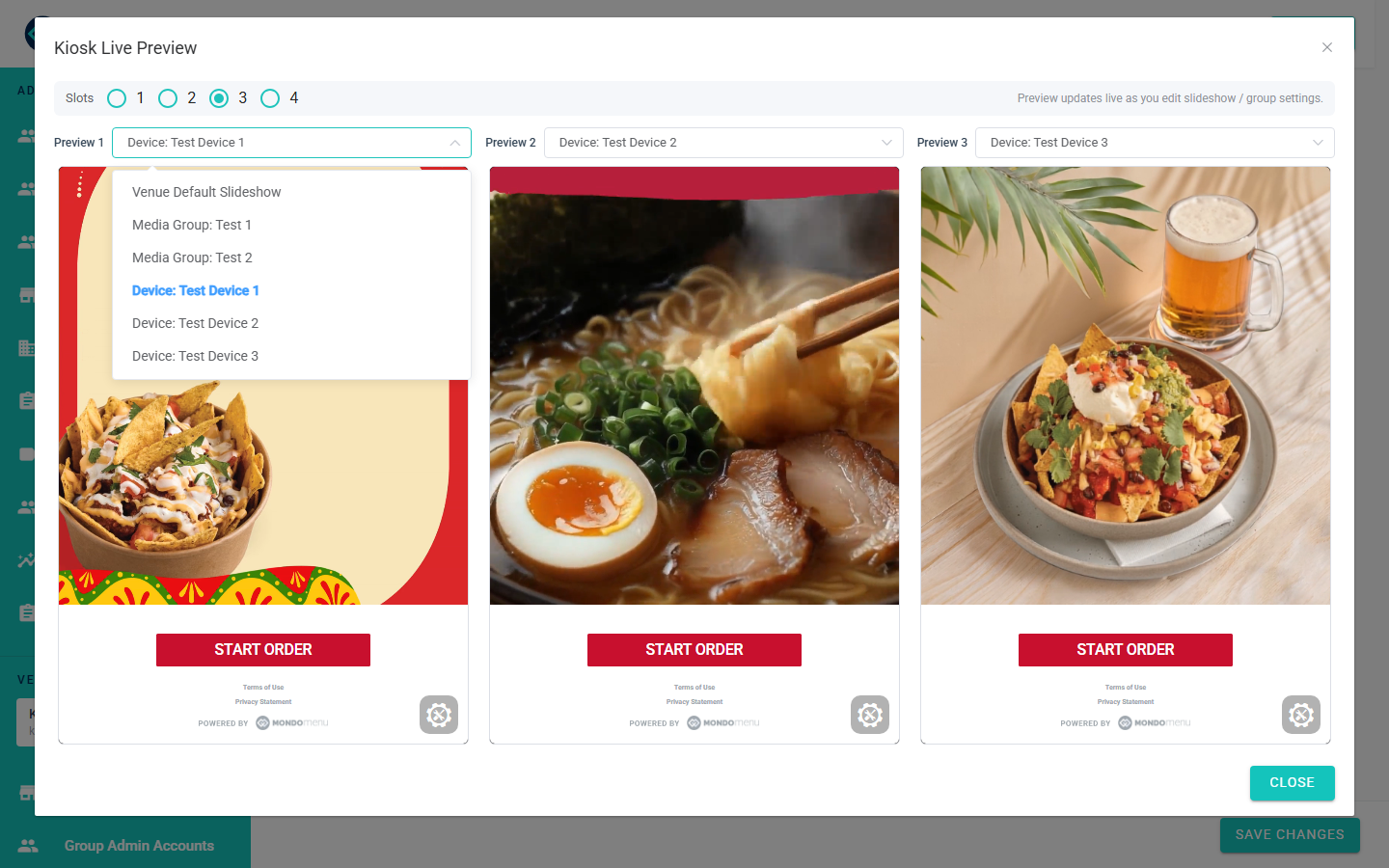
Step 3 — Change a slot's source
Each panel has a source dropdown: Venue Default Slideshow, Media Group: [name], or Device: [name].
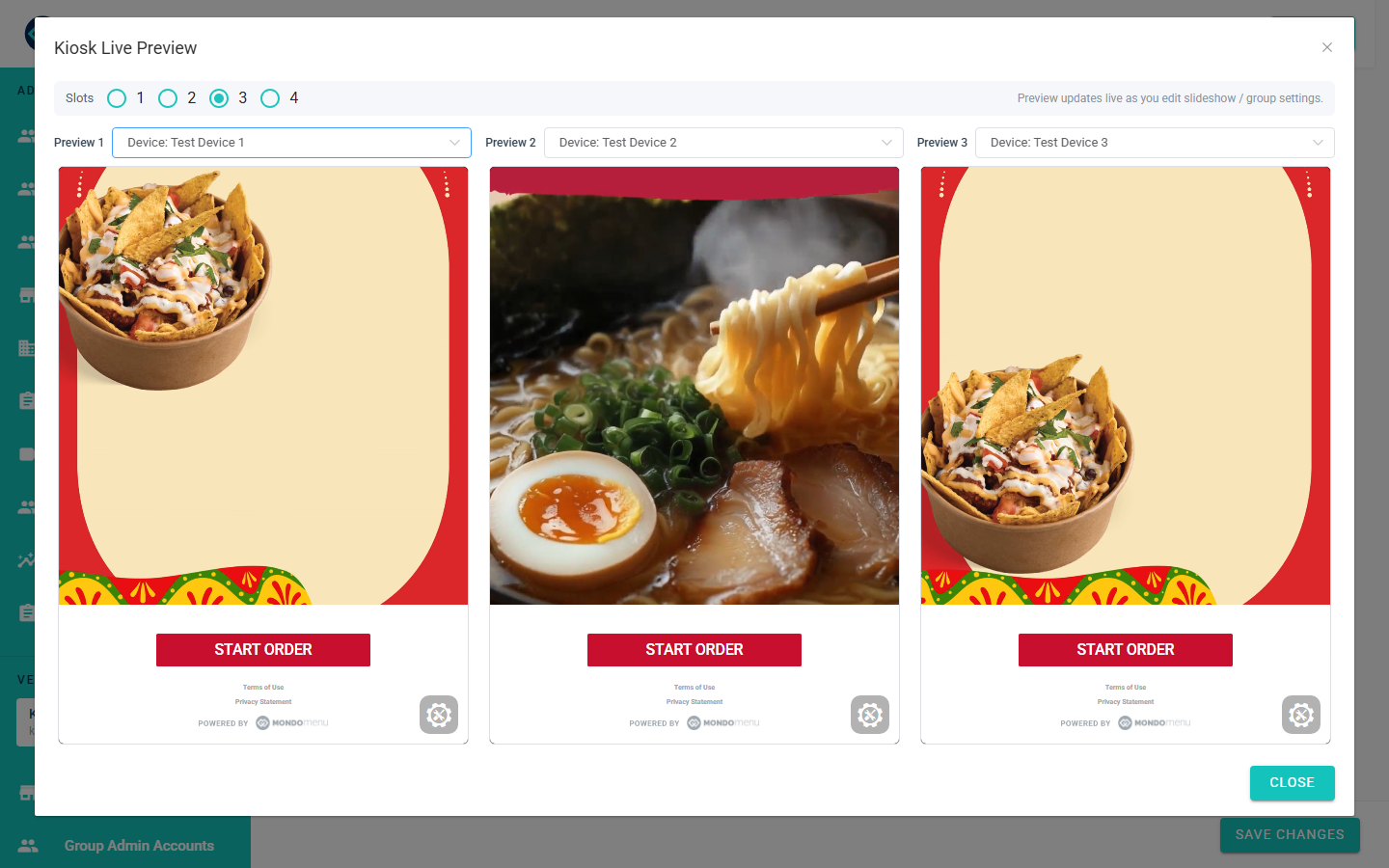
Step 4 — Edit while preview is open
Set different slots to different sources to compare side-by-side. Edits to slideshow items, logo, or logo text update the iframes instantly — no save needed. The example below shows three panels each pointing to a different source, rendering distinct content in real time.
Step 5 — Switch languages inside a preview panel
The language selector at the bottom of each preview panel is the only interactive element. Clicking START ORDER, Terms, or Privacy has no effect — visual-only by design. Use this to verify multilingual layouts.
Step 6 — Close & save
Close (✕ or click outside). Click Save on Kiosk Settings to apply.
Tips
- Panels match real 1080 × 1520 kiosk portrait aspect.
- Preview updates as you type.
- START ORDER is visual-only.
- Dialog uses 92% viewport height.
- Compare different configurations per slot.
FAQ
Why doesn't Live Preview appear? Slideshow ON + at least one device registered.
Affects live kiosks? No — read-only.
Preview without saving? Yes — that's the point.
Works offline? No.
Only 1–2 slots? That's how many devices you have.
Compare group vs device? Yes.