
Overview
Media Groups replace the old per-device "Custom" slideshow. A Media Group is a named slideshow collection (e.g. "Drinks Menu", "Weekend Specials"). Create once, point any number of devices at it — updates propagate automatically.
As of late v2026.04, a 4th mode Schedule by Time also exists on top of Media Groups — it lets one device cycle through different groups based on time of day. See the dedicated Schedule by Time guide.
Why Media Groups Beat Custom
Role Differences
All three roles see the same Media Groups interface. Only navigation path differs.
Step-by-Step Setup
Step 1 — Locate the Media Groups Card
Venue Settings → Kiosk. Confirm Slideshow is selected — Media Groups card is visible only in Slideshow mode. Scroll below Default Kiosk Home Page Setup.
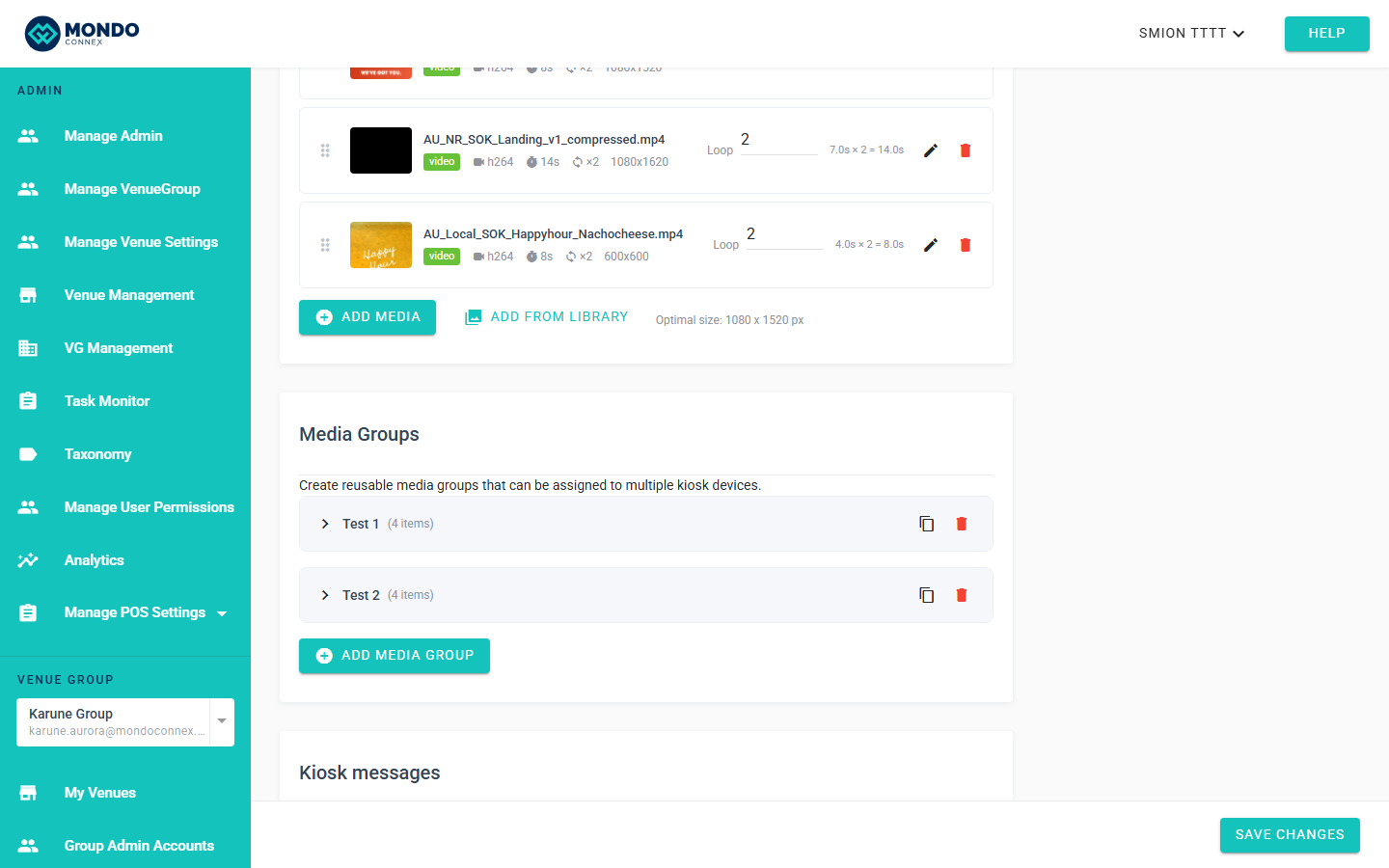
Step 2 — Create, Populate, Duplicate, Delete
Each group row has duplicate (two overlapping squares) and delete (trash) icons on the right, plus its own slideshow editor.
- Create: click Add Group → descriptive name
- Populate: Add Item or Add from Library → set duration / Loop, drag to reorder
- Duplicate: icon creates
(Copy)suffix - Delete: trash → confirm. Devices fall back to Venue Default
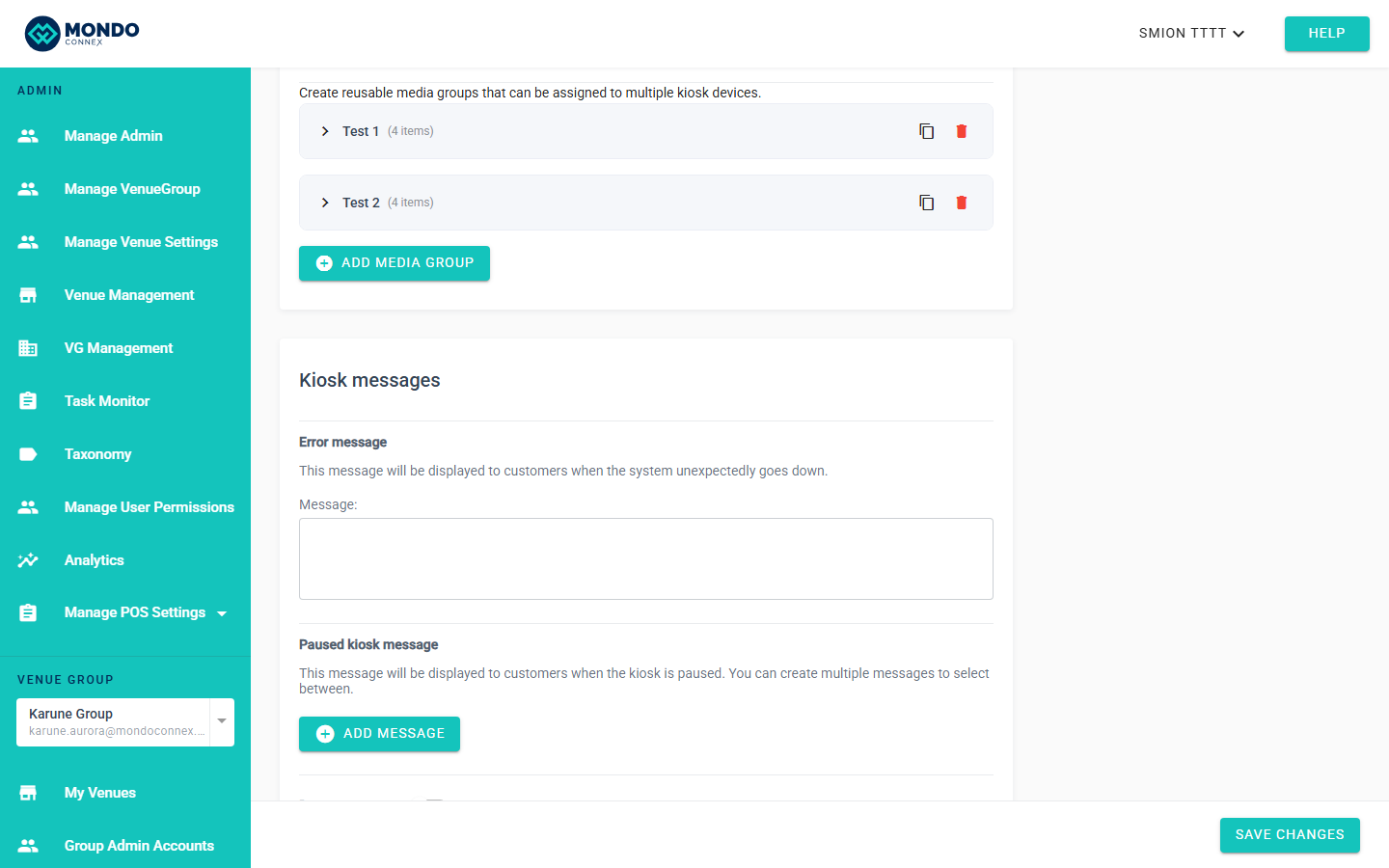
Step 3 — Save
Click Save at the bottom of Kiosk settings.
Step 4 — Assign Devices via Device Media Settings
In the device table, click the ⚙ settings icon on a device row. The Device Media Settings dialog offers up to four options:
- Use Venue Default — device plays the venue-level default slideshow
- Use Media Group — dropdown lists all groups; pick one
- Custom (legacy) — existing devices saved this way still show it; new edits no longer offer it
- Schedule by Time (NEW, late v2026.04) — rotate Media Groups by time of day (and optionally by weekday). See Guide 07.
Step 5 — Confirm Media Column
After save, the Media column shows:
GROUP: Drinks Menu      ← green badge — assigned to a named group
VENUE                   ← grey badge — using Venue Default
SCHEDULE: daily         ← blue badge (NEW) — on Schedule by Time, Daily mode
SCHEDULE: per-day       ← blue badge (NEW) — on Schedule by Time, Per-weekday mode
CUSTOM                  ← orange badge — legacy custom slideshow
Long names truncate — hover for full tooltip.
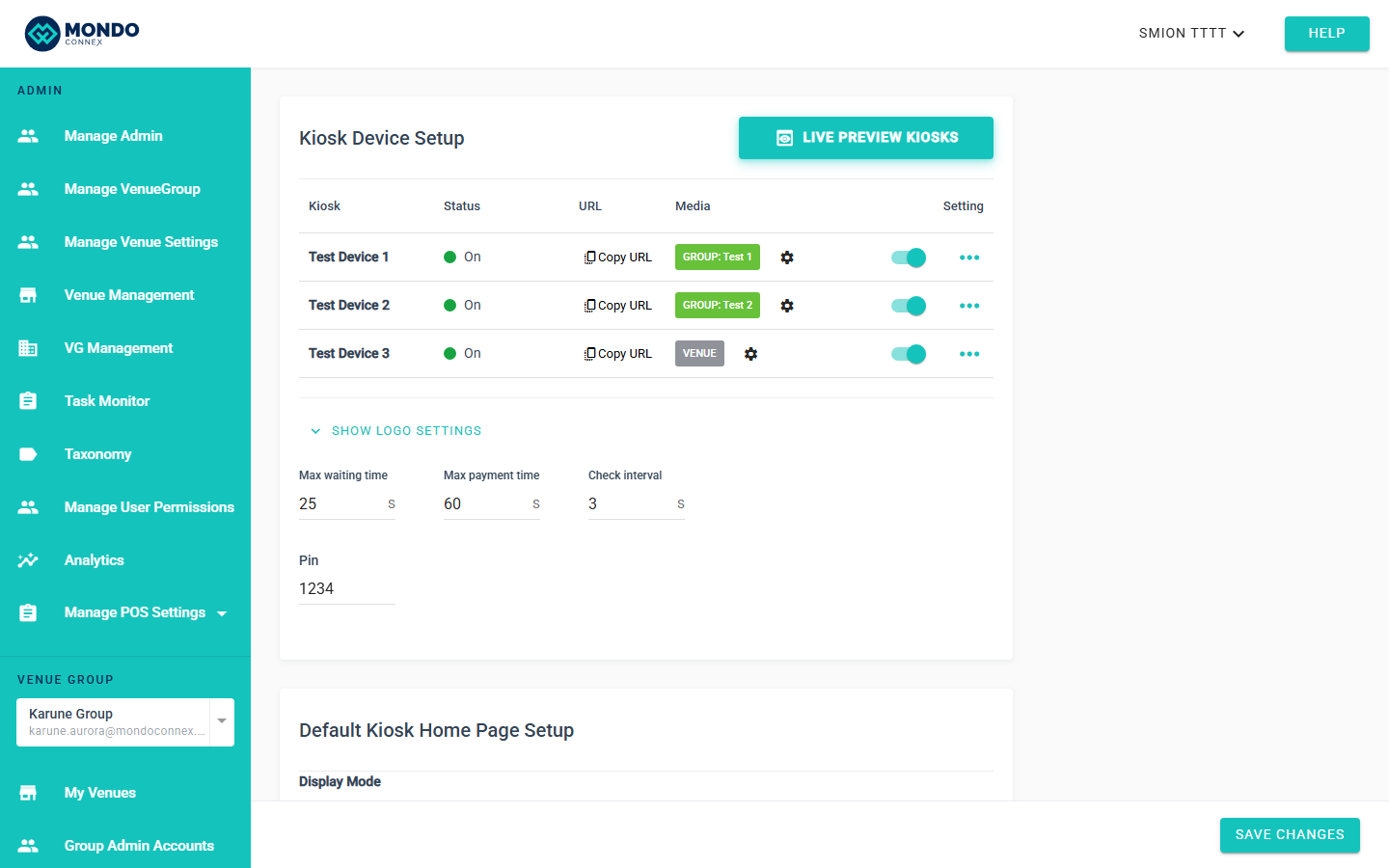
Step 6 — Full device table with mixed assignments
Overview of a device table where two devices point at different Media Groups and one uses the Venue default. Also note the LIVE PREVIEW KIOSKS button in the card header and the Copy URL on each device row.
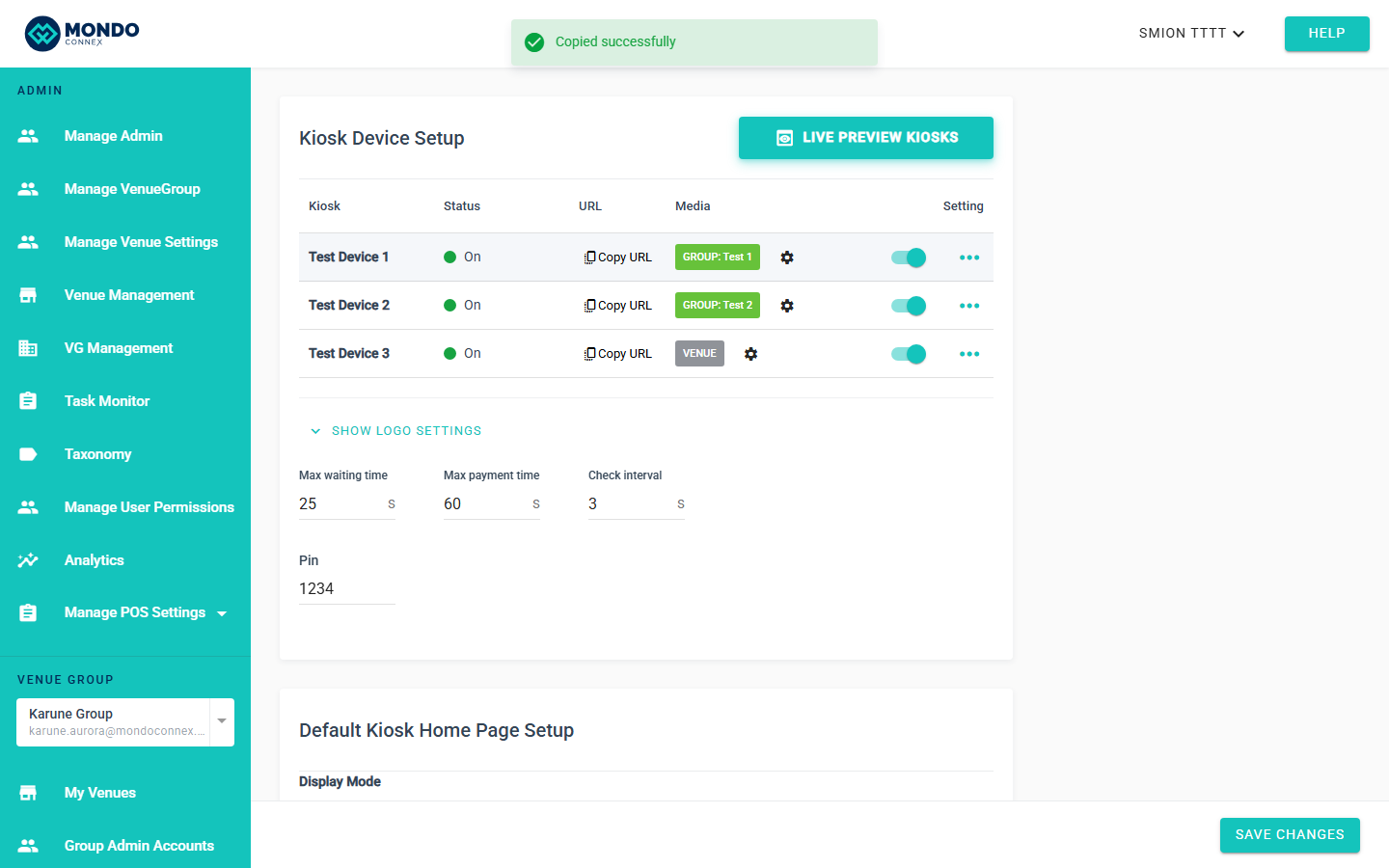
Step 7 — Verify with Live Preview
Use Live Preview → select a specific device in a slot dropdown to confirm the right slideshow is playing.
Tips
- Descriptive names —
Bar Screen – Happy Hour. - Organize by campaign / section.
- Multiple devices share a group — main benefit over Custom.
- Hover the Media badge for full tooltip.
- Duplicate for seasonal variants — faster than rebuilding.
- Legacy Custom devices keep playing until re-edited.
- Schedule mode uses groups — build your groups first, then reference them from schedule slots.
FAQ
Existing custom slideshow when editing device? Plays as-is. Next save must pick Venue Default, Media Group, or Schedule by Time.
Two devices share a group? Yes.
Max groups? No hard limit.
Which group is live? Media column shows
GROUP: name / VENUE / SCHEDULE: daily|per-day / CUSTOM. Or use Live Preview.What's the difference between Media Group and Schedule by Time? Media Group = one fixed slideshow all day. Schedule by Time = the device cycles between multiple groups based on the current time.
Truncated name? Hover for tooltip.