
AI Recommendations -- Getting Started
Venue → Manage Menu → AI Recommendation tab
Automatically increase add-ons using your own sales data
What it does
AI Recommendations analyse your past orders and automatically suggest relevant items during the ordering journey -- appearing alongside each product and in the cart.
Once enabled, it helps increase:
- Drink attach rates
- Sides and extras
- Overall order value
No manual upsell rules. No ongoing maintenance.
Best results come with 30+ days of order history. Recommendations improve over time as more data is collected.
Where recommendations appear
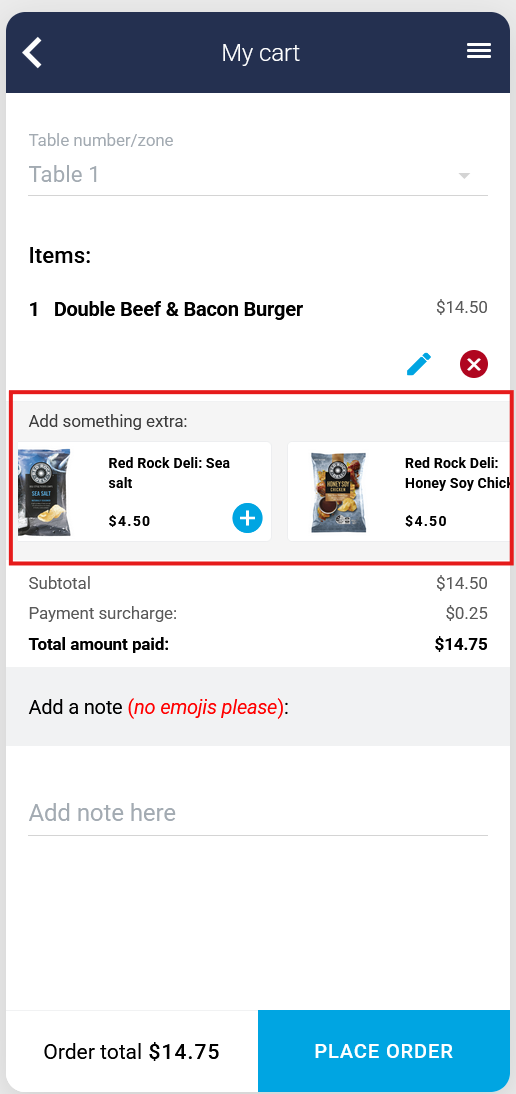
- In the cart -- before checkout
- On the product screen -- as "Goes well with" or "You may also like"
Step 1 -- Open the AI Recommendation tab
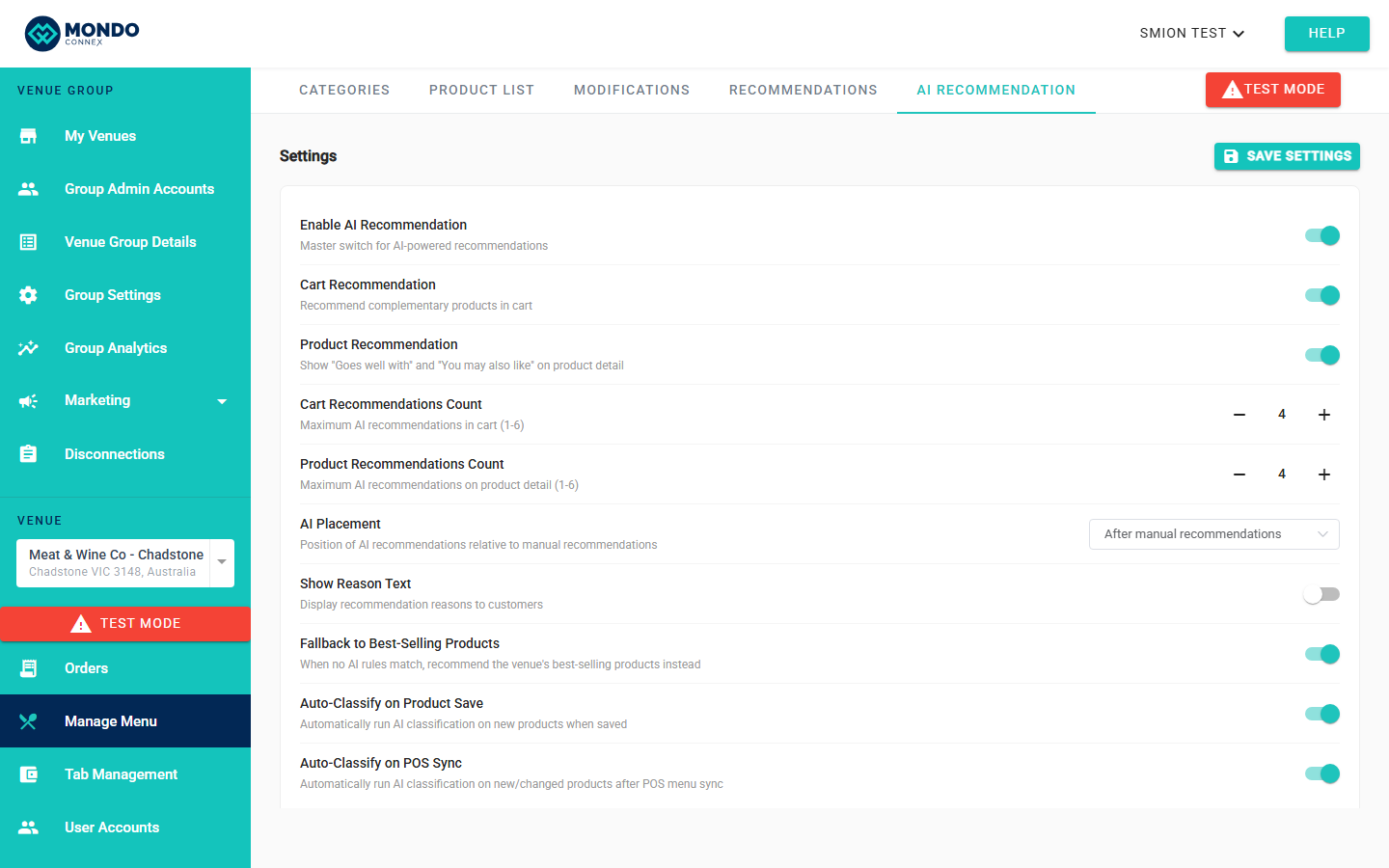
Navigate to: Manage Menu → AI Recommendation tab
Can't see the tab? You may be logged in as a Venue User. Ask your administrator to upgrade your role.
Step 2 -- Turn it on
Toggle Enable AI Recommendation to ON, then click Save Settings.

Key settings -- defaults work for most venues:
Cart Recommendation -- suggests items at checkout
Product Recommendation -- suggests items on each product page
Fallback to Best-Selling Products -- if recommendations aren't ready, your top sellers show instead
Auto-Classify on Product Save / POS Sync -- new products are analysed automatically
Step 3 -- Prepare your data
In the AI Recommendation tab, run both of these:
3.1 -- Refresh Sales Insights Click Refresh Sales Insights. This analyses your order history to identify best-sellers and common pairings.
3.2 -- Classify your products Click Classify Unclassified Products. This runs in the background -- just click and let it go.
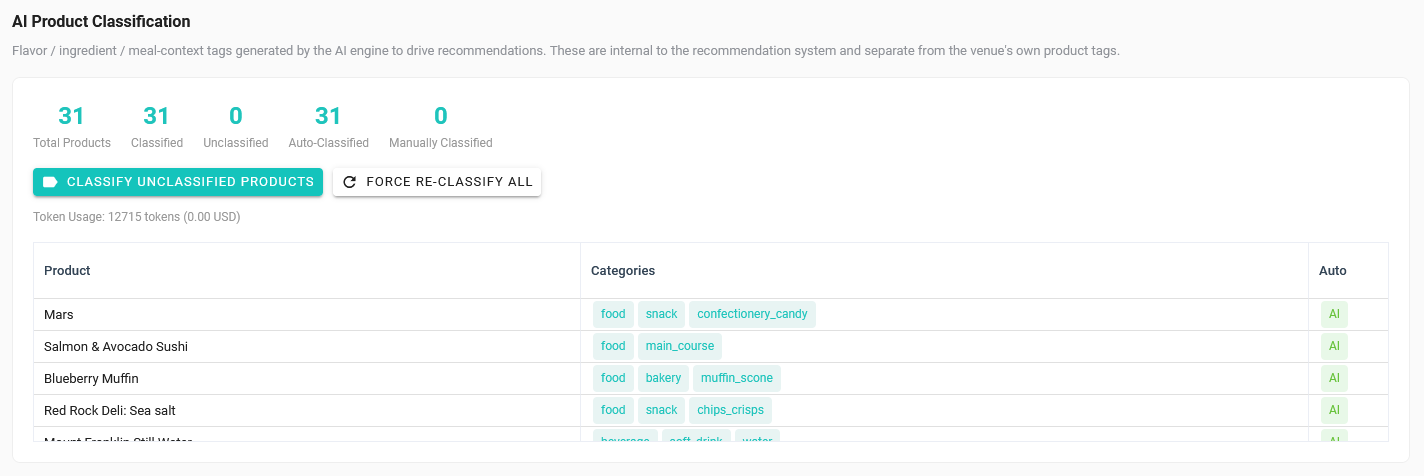
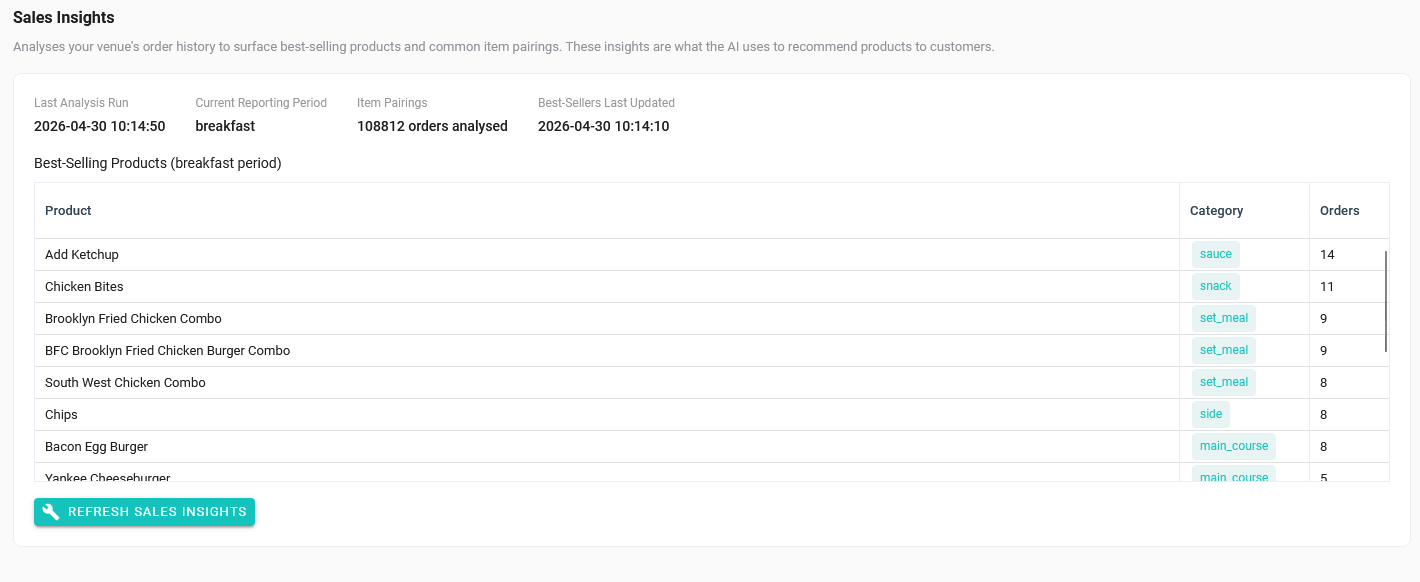
Classification tags are internal -- customers never see them. If you've just done a POS sync, wait a few minutes before checking.
Step 4 -- Check it's working
Add an item via your menu, kiosk, or QR ordering page. You should see recommendation cards appear alongside the product and in the cart.
That's it
Once enabled, AI Recommendations run automatically. Most venues use this to drive additional drink and side sales without relying on staff prompts.
A few things to remember:
- Always click Save Settings after making changes -- there's no auto-save
- Run Refresh Sales Insights weekly to keep recommendations fresh
- Re-run Classify Unclassified Products when you add new menu items