
Overview
Schedule by Time is a new kiosk device media mode that lets your kiosk switch between different Media Groups automatically based on the time of day — and optionally, the day of the week.
Typical uses:
- Breakfast / Lunch / Dinner menus on the same kiosk, rotating automatically at the right times
- Happy-hour promos that only show from 16:00 to 19:00
- Weekend-only specials that activate on Saturday and Sunday
You choose a Media Group for each time slot. The kiosk resolves the correct slideshow in the venue's timezone, so it works correctly no matter where the device is. If no slot matches, a Default media group kicks in so the screen is never blank.
Role Differences
All three admin roles use the same Schedule editor — only the navigation path differs.
Venue User (staff) does not have Kiosk Settings access — schedule editing is admin-only.
Prerequisites
Schedule by Time requires at least one Media Group. The radio option is disabled until you create one; a hint appears beneath the control:
Add at least one media group above before you can schedule different content for different times of day.
If your venue has no Media Groups yet, see Guide 04 (Per-Device Media Groups) first — build the groups, then come back to assign them to time slots.
Step-by-Step Setup
Step 1 — Open the Device Media Settings dialog
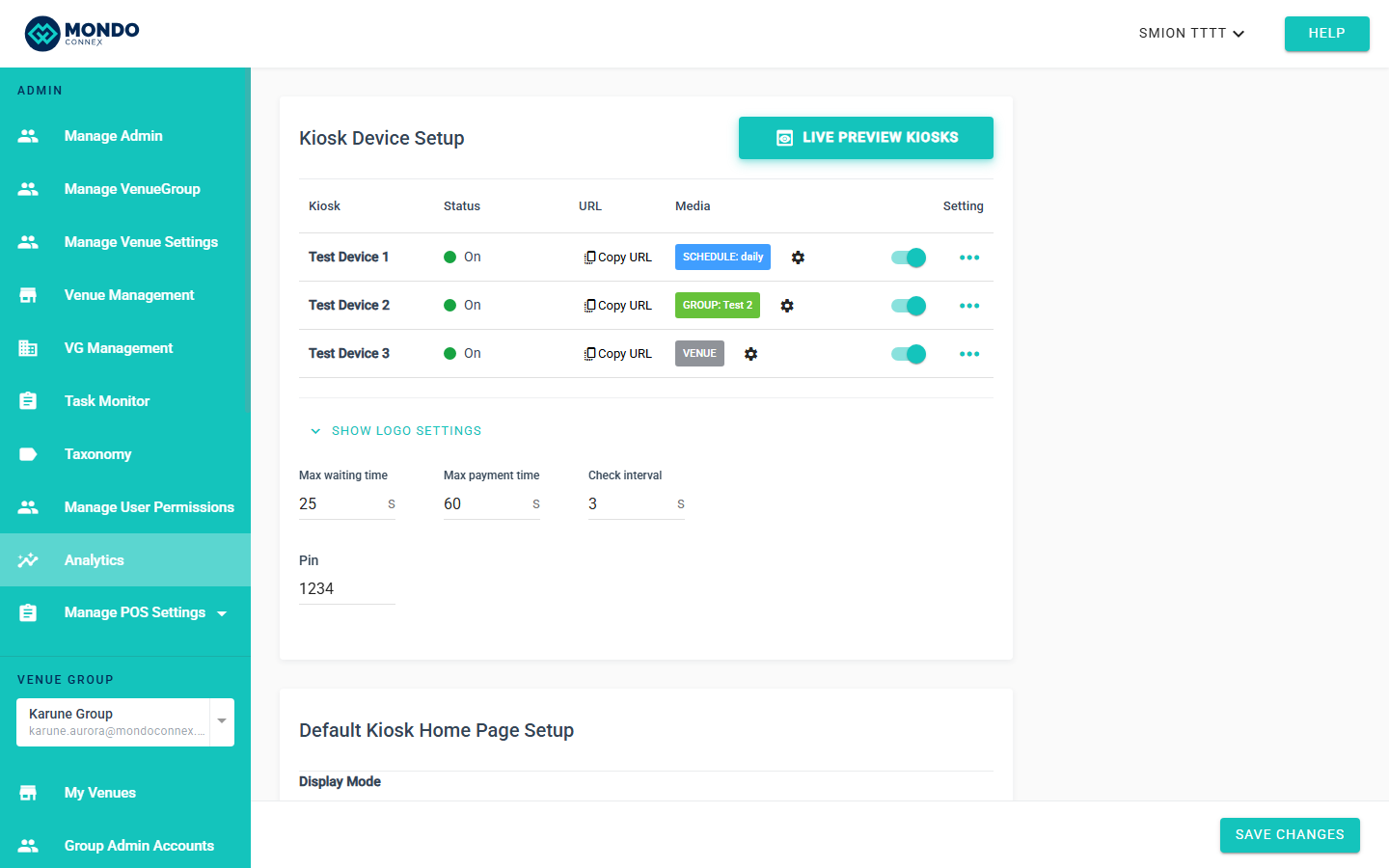
In Venue Settings → Kiosk, scroll to the device table inside the Kiosk Device Setup card. Click the ⚙ settings icon on the row of the device you want to schedule.
Devices already on Schedule mode show a blue
SCHEDULE: daily or SCHEDULE: per-day badge in the Media column — this is how you spot scheduled devices at a glance.
Step 2 — Pick "Schedule by Time"
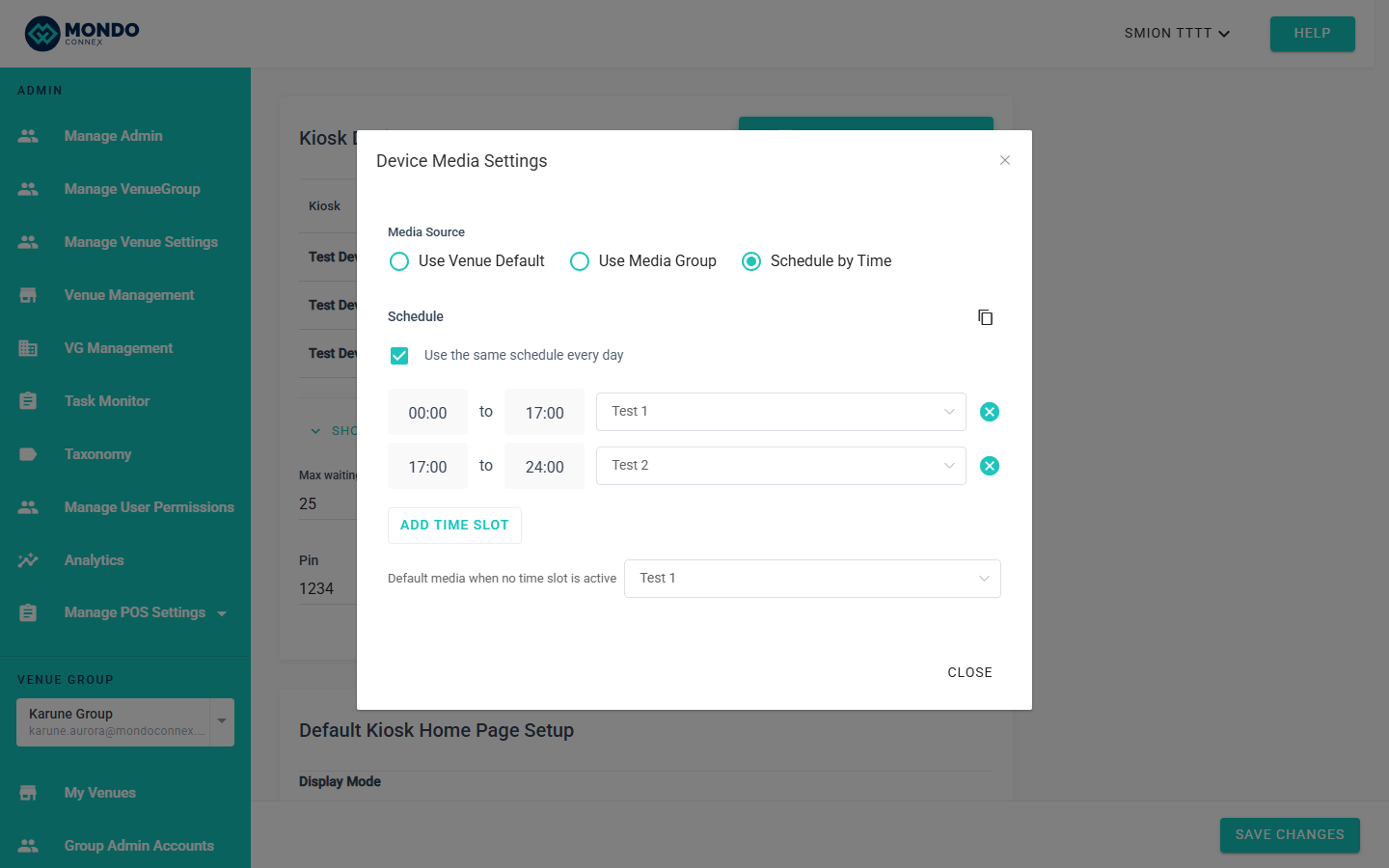
The Device Media Settings dialog lists Media Source options:
- Use Venue Default
- Use Media Group
- Schedule by Time ← pick this
When you select it, the Schedule editor is pre-filled with a sensible default: one
00:00–24:00 slot pointing at your venue's first Media Group, plus that same group as the Default media when no time slot is active value. You can adjust everything from there — you do not have to start from a blank form.
Step 3 — Pick Daily or Per-Weekday
At the top of the Schedule editor you'll see a Use the same schedule every day checkbox:
- Checked (default) — Daily mode: one list of time slots applies to every day of the week. Simpler, and the right choice for most venues.
- Unchecked — Per-weekday mode: each day (Monday through Sunday) gets its own independent list of time slots.
Start with the checkbox ticked (Daily); you can uncheck it at any time to switch to Per-weekday without losing data.
Step 4 — Add Time Slots
Each slot row shows:
- From and To time fields (15-minute intervals, same style as Operating Hours)
- Media group dropdown (picks from the venue's Media Groups)
- An × button to remove the row
Click Add Time Slot to add more rows. The new slot defaults to
00:00–24:00 with your first Media Group — adjust the times and the group.
Tip: time slots use a half-open interval
[From, To). A slot 11:00–16:00 is active at 11:00:00 and ends exactly at 16:00:00. Back-to-back slots (e.g. 07:00–11:00 → 11:00–16:00) never overlap at the boundary.
Step 5 — Switch to Per-Weekday Mode (Optional)
Uncheck the "Use the same schedule every day" checkbox. The editor changes to show seven rows — one for Monday through Sunday — each with its own list of slots and an Edit button.
Click Edit on any day row to open the multi-day editor dialog.
Step 6 — Edit Multiple Days at Once
The Edit day dialog lets you configure one day's slots and apply the same configuration to other days:
- Select the time slots you want (same fields as Daily mode)
- At the top, the weekday picker shows
Mon Tue Wed Thu Fri Sat Sunas clickable buttons - The day you opened the dialog from is always selected and cannot be deselected (prevents accidental data loss)
- Click any other day button to apply the same slots to that day too
- Hit Save — all selected days get the same slot list
This is the fastest way to configure "Monday to Friday = weekday schedule, Saturday + Sunday = weekend schedule" in two clicks.
Step 7 — Pick a Default Media Group
At the bottom of the Schedule editor there is a Default media when no time slot is active dropdown. If the current time doesn't match any of your slots, the kiosk plays this fallback group.
The default value is your venue's first Media Group. Change it to any group, or pick Use venue default to play the venue-wide default slideshow.
Step 8 — Copy a Schedule from Another Device (Optional)
If another device in the same venue is already set to Schedule by Time, you can copy its full schedule in one click:
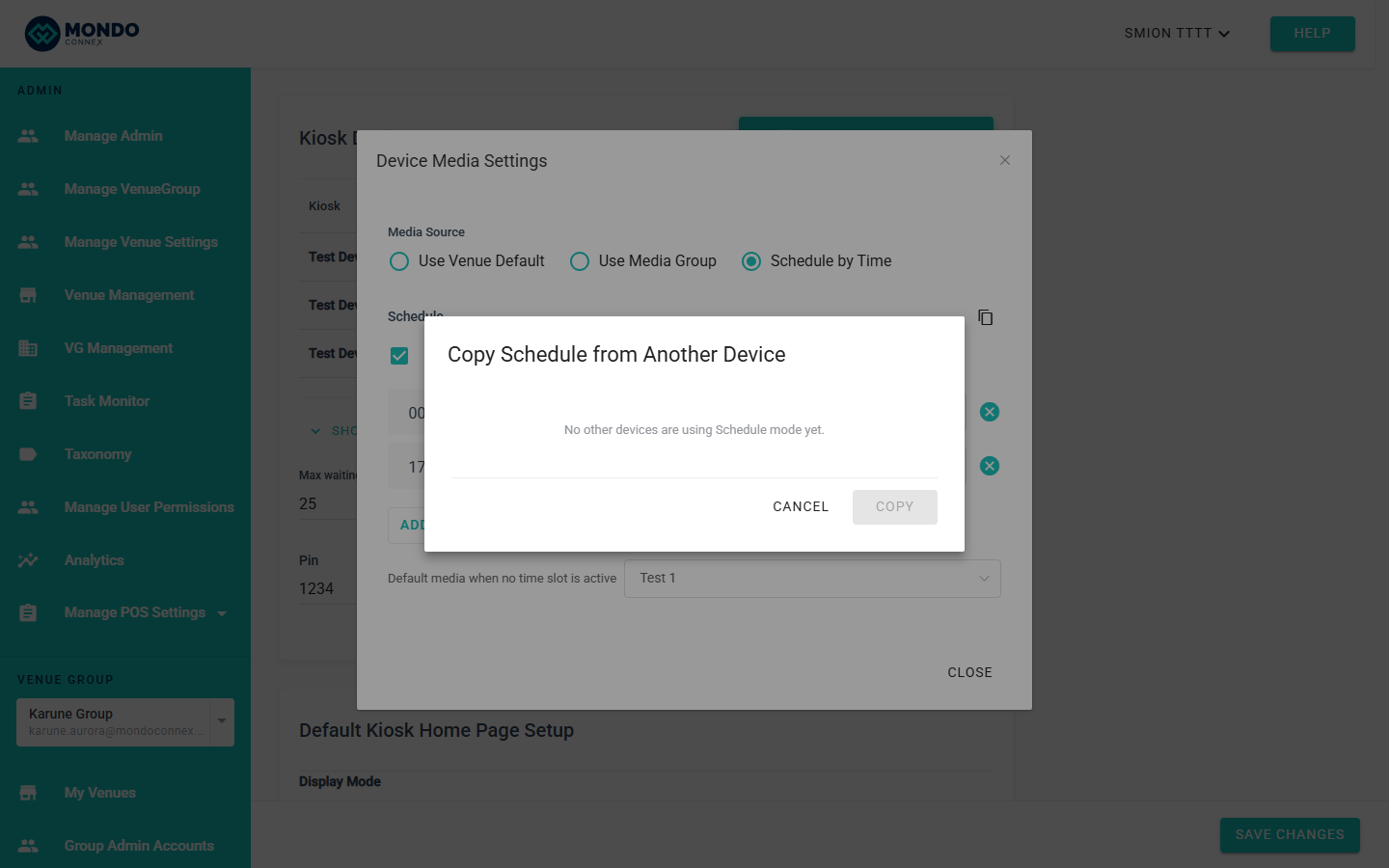
- In the Schedule editor, click the copy icon (top-right of the Schedule section — two overlapping squares)
- A dialog lists all other devices currently on Schedule mode — pick one
- Click Copy — the selected device's full schedule is copied (slot IDs are regenerated, so edits on either device are independent from this point on)
Step 9 — Save
Click Save in the Device Media Settings dialog, then Save on the Kiosk Settings page.
Validation: Save is blocked if:
- Day mode is unset
- Any slot has
From ≥ To(invalid range) - Any slot has no Media Group selected
The error toast points you to the specific device and slot.
Step 10 — Confirm on the Device Table
Back on the Kiosk Settings page, the Media column of the scheduled device now shows a blue badge:
SCHEDULE: daily— device is in Daily (uniform) modeSCHEDULE: per-day— device is in Per-weekday mode
Tips
- Timezones are handled automatically. Schedule slots use the venue's timezone. A kiosk in
Australia/Melbourneand one inAsia/Tokyoeach switch slots at the right local time. - Start with Daily mode. Only switch to Per-weekday if you actually need different schedules per day.
- Back-to-back slots are fine. Half-open interval
[From, To)guarantees no overlap or conflict at exactly the transition time. - Pick a Default media you're OK with at any time. It's what customers see during uncovered hours.
- Copy schedule from another device is a huge time saver.
- Schedules survive group edits. Rename or update a Media Group and every device pointing at it via a schedule picks up the change automatically.
- Media Library delete-protection respects schedules. Deleting a file used by a group referenced in any schedule slot is blocked with a
Device: <name> schedule slot (<when> HH:mm-HH:mm)entry in the "currently in use" list.
FAQ
What happens at exactly the slot end time?
End time is exclusive: a slot
11:00–16:00 stops at exactly 16:00:00 and the next slot (or the default media) takes over. No overlap, no gap.
Can I have gaps between slots?
Yes. If you schedule only
11:00–14:00 and 17:00–21:00, the time in between falls back to the Default media group — by design.
What if the Media Group referenced by a slot is deleted later?
The slot falls through silently: the kiosk skips it and uses the Default media. Safe to fix — just pick a replacement group.
Does the kiosk redownload content every slot change?
No. The resolver runs locally against the same media library; transitions are instant.
Can I use the same Media Group in multiple time slots?
Yes.
07:00–11:00 and 16:00–22:00 can both point at the same "Promotions" group.
Does Schedule by Time work across midnight?
Not as a single slot —
From < To is required. For a venue running past midnight, create 22:00–24:00 + 00:00–02:00 (two slots). With Per-weekday this is natural; with Daily, every night uses the same two-slot pattern.
Why is "Schedule by Time" greyed out?
The venue has no Media Groups yet. Create at least one group first (see Guide 04), then the option becomes available.
Can I preview a schedule with Live Preview?
Live Preview shows whatever the selected device is currently resolving — which for a scheduled device is the slot active at the moment you open the preview.
Who can edit schedules?
System Admins, Venue Group Admins, and Venue Admins — same as all other Kiosk settings. Venue Users cannot.